# Portainer AI Documentation

All the details you need to run, secure, and govern containers and AI on your own infrastructure.

Portainer AI is a family of products for putting AI to work on the Kubernetes platforms you already run, under the controls your security team already requires. Each product runs inside your own environment, uses your existing Portainer RBAC, and treats Git as the source of truth for every change it makes.

The first available products are **Portainer-Run** and **Portainer-Command**. More products will be added to this documentation as they are released.

***

<table data-card-size="large" data-view="cards"><thead><tr><th></th><th></th><th data-hidden data-card-cover data-type="image">Cover image</th><th data-hidden data-card-target data-type="content-ref"></th></tr></thead><tbody><tr><td><h4>Portainer-Run</h4></td><td>A governed self-service layer that lets non-developer business teams deploy the apps they build with AI tools onto your organization's own Kubernetes, without ever needing to know anything about Kubernetes, containers, or infrastructure.</td><td data-object-fit="fill"><a href="https://2463424576-files.gitbook.io/~/files/v0/b/gitbook-x-prod.appspot.com/o/spaces%2Fwg4JrAPgL0W0wygwwbaI%2Fuploads%2FuEsV1ZGR3sMte3pzwLa5%2Fportainer-run.svg?alt=media&amp;token=5fc61404-5689-435b-9bfc-6df0b2458eb8">portainer-run.svg</a></td><td><a href="/portainer-run/welcome-to-portainer-run">Welcome to Portainer-Run</a></td></tr><tr><td><h4>Portainer-Command</h4></td><td>Portainer-Command is the MCP gateway between your AI agent and your cluster; agents get expiring read-only sessions with a stated rationale, and every change arrives as a Git pull request that a person approves before Portainer applies it.</td><td data-object-fit="fill"><a href="https://2463424576-files.gitbook.io/~/files/v0/b/gitbook-x-prod.appspot.com/o/spaces%2Fwg4JrAPgL0W0wygwwbaI%2Fuploads%2FJW8H0Vjux6aTdnvJhrcT%2Ffavicon.svg?alt=media&amp;token=81e83d5a-48cc-49ea-b3c7-9ed834ed530a">favicon.svg</a></td><td><a href="/portainer-command/portainer-command">Welcome to Portainer-Command</a></td></tr></tbody></table>


# Welcome to Portainer-Run

Portainer-Run is a governed self-service layer that lets non-developer business teams deploy the apps they build with AI tools onto your organization's own Kubernetes, without ever needing to know anything about Kubernetes, containers, or infrastructure.

<a href="/portainer-run/architecture/overview" class="button secondary" data-icon="buildings">Architecture</a><a href="/portainer-run/requirements" class="button secondary" data-icon="clipboard-list-check">Requirements</a><a href="/portainer-run/quick-start" class="button primary" data-icon="rocket-launch">Quick Start</a>

***

## Why Portainer-Run exists

AI has made everyone a developer. Not a software engineer, not a full-stack engineer, but a developer: someone who can describe a business problem to an AI coding tool and get a working application out the other side. The barrier to creation has effectively gone.

The best AI-assisted development tools know this, which is why they push hosting onto their own SaaS or PaaS. It's the only way to keep the experience seamless end to end. That works right up until the app needs to talk to something inside your network: an internal database, an on-prem API, a system that lives behind the firewall and isn't going anywhere. At that point the experience collapses, and the only path forward is a ticket to the platform team.

That platform team is already stretched. The influx of deployment requests from people who have never touched infrastructure, app owners, business developers, support staff, people who vibe-coded their first container last Tuesday, is a real and growing problem with no clean answer today. Buying an Internal Developer Platform that takes a year to configure before anyone can use it isn't the answer either.

Portainer-Run sits in that gap. A container-ready application is already an artifact AI coding tools can produce. Portainer-Run is the "now run it, inside your environment" layer, with the platform team's guardrails baked in via Portainer's existing RBAC, Git-based governance, and policy controls. The platform team's role shifts from processing every deployment ticket to setting the rules once.

It is intentionally narrow in scope. Portainer-Run does not replace Portainer. It does not try to serve the engineer who already has full cluster access and wants a powerful agent with deep API reach; that's a different product for a different persona. Portainer-Run surfaces one workflow, deploy, run, and operate a containerized workload, in the simplest interface possible, for the people who have no idea what a Pod is and shouldn't need to.

## What Portainer-Run does

Portainer-Run connects to your Portainer instance using a personal access token. Access is governed entirely by your Portainer RBAC role, so there is no separate user or permissions model to manage. Once connected, it provides a unified, self-service view across every Kubernetes environment your account can reach.

From Portainer-Run, a business builder can:

* **Deploy an AI-built application straight from source**: no Dockerfile, no container registry, no platform engineering ticket. Sane resource requests and limits are applied automatically, so a first deployment doesn't need an administrator's involvement to be safe by default.
* **Monitor, scale, restart, and roll back** everything they've deployed from a single operational view.
* **Update a running application** by uploading revised files, which commits the change to Git and redeploys it.
* **Ask the built-in Assistant** questions about their services in plain English, and get an AI-powered answer grounded in live logs and events.

Underneath all of it, every deployment is committed to a sanctioned Git repository and reconciled onto Kubernetes by Portainer's GitOps engine. Nothing is deployed out of band, nothing bypasses your governance, and administrators retain full visibility over what's running and who deployed it.

## Where to go next

* New to Portainer-Run? Start with [Requirements](/portainer-run/requirements) and then [Quick Start](/portainer-run/quick-start).
* Already running it? Jump to [Using Portainer-Run](/portainer-run/user/overview) to explore the interface, or [Architecture](/portainer-run/architecture/overview) to understand how it fits together with Portainer.


# Release Notes

## Release 1.5.0

November 6, 2026

### Known Issues <a href="#id-1e9b55d1-128e-49da-85f3-e7a9ae7c0948" id="id-1e9b55d1-128e-49da-85f3-e7a9ae7c0948"></a>

* On Portainer 2.44, stacks created through the API don't check Git for changes on their own. An Edit-tab change saved by someone other than the app's owner waits until the owner saves a change.
* Reinstalling Run removes its saved Git targets.
* Run accepts some app names that Kubernetes later rejects, such as names starting with a hyphen or longer than 63 characters.

### Before you upgrade <a href="#id-6c1f4ffb-ce0a-4793-9eaf-c47ce7882581" id="id-6c1f4ffb-ce0a-4793-9eaf-c47ce7882581"></a>

**Self-signed Git servers need Skip TLS verification ticked.**\
Apps now clone their source with the Git target's own TLS setting. Before, certificate checks were always skipped. If a Git target points at a server with a self-signed or private-CA certificate, open it under [Git targets](/portainer-run/user/admin/git-targets) and tick **Skip TLS verification** before you deploy or update apps with it.

**Operator roles can no longer deploy or edit apps.**\
Run now checks, with your own [Portainer access](/portainer-run/architecture/roles), that you can work in the target project space before every deploy, edit, delete and settings read. Users with the Operator or Namespace Operator role can now only restart and scale apps; they can't deploy or edit them. Give each user who deploys apps the Standard user role on their own project space.

**MCP deploys need a Gateway URL.**\
`deploy_app` sends source files through the file gateway, so set **Gateway URL** in Run's [settings](/portainer-run/user/admin/settings) before agents deploy. Without it, `deploy_app` returns a clear error asking for it.

**Runtime images are pulled on every pod start.**\
New and redeployed apps pull their runtime image (`node:22`, `php:8.4-apache` and so on) each time a pod starts, so runtime security updates reach them. On an air-gapped cluster, make sure the runtime images are available from a registry mirror the cluster can reach, or new pods fail with `ImagePullBackOff`.

**Environment variable values move out of Git.**\
Every value now lives in a Kubernetes Secret named `<app>-app-secrets`, and the committed manifest holds none. An app deployed by an earlier version moves its values the first time you save its settings. Values committed by earlier versions stay in your repository's history, so rotate any secrets that were stored that way.

**A changed encryption key keeps unreadable Git targets aside.**\
When you continue with a new encryption key, Git targets that the new key can't decrypt are copied into a `connections_orphaned` table before they're removed. To get them back, [restore the key that encrypted them and copy the rows back](/portainer-run/user/admin/git-targets#recovering-targets-after-a-key-change).

### New in this release

#### New features <a href="#fcef0c09-97db-402f-8e2f-bd9a8c7d080b" id="fcef0c09-97db-402f-8e2f-bd9a8c7d080b"></a>

* **App sizes.** Deploy an app at Small, Medium (twice Small) or Large (four times Small), and change its size later on the Edit tab. Sizes above Small need a short reason, which is recorded with the app.
* **Redeploy and Runtime updates.** A Redeploy action restarts an app on the latest release of its runtime image. Administrators get a Runtime updates page listing every app by runtime, from which they can redeploy apps across environments.
* **Connect your agent.** A new page sets up MCP clients such as Claude Desktop and Claude Code for your account. It creates a Portainer access token for the agent, shows it once, and lists and revokes the ones you've made. The token has your full Portainer rights and doesn't expire, so revoke it when it's no longer needed.
* **Claude Desktop extension.** Connect your agent offers a one-click `.mcpb` extension for Claude Desktop, so you don't need Node.js installed to connect it.
* **Business-friendly MCP.** MCP no longer asks for a cluster, namespace or hostname. It fills them in from what you can access, says what it picked, asks in plain language when there's a real choice, and reports results in plain language. A new `get_deploy_options` tool shows the choices.
* **Detail page header.** The app detail page has a sticky header that stays in view as you scroll.

#### Security updates <a href="#id-88a30779-7d6d-4df7-bebf-fa209ae0cf5e" id="id-88a30779-7d6d-4df7-bebf-fa209ae0cf5e"></a>

* Run checks that you can work in an app's project space before every deploy, edit, delete and settings read, and refuses paths outside the app's folder. One user can no longer overwrite another user's app in a shared Git target.
* Environment variable values, secret or not, are kept in a Kubernetes Secret and never committed to Git.
* Apps deployed before 1.4.0 get the web server rule that hides `.env` and other dotfiles the first time their settings are saved, and when they are redeployed with Run's Redeploy.
* An Edit-tab change applies at once only when the person saving it is the one the app's stack runs as. Anyone else's change, an administrator's included, is saved in Git and applies at the stack's next Git check, so a stack never starts running with another person's rights.
* Every request to Run is checked against your Portainer session, request bodies have a size limit, and slow Git hosts and Portainer calls time out instead of hanging the server.
* The source clone quotes every value, keeps the Git target's scheme, and skips certificate checks only when the target asks for it.

#### Bug Fixes <a href="#eb20de61-8412-40ee-8762-b16e2a667830" id="eb20de61-8412-40ee-8762-b16e2a667830"></a>

* Edit-tab changes to an app's address or size are applied to the running app, not only saved in Git. When Portainer can't apply a change, the tab says it is saved and when it applies.
* Secret environment variables are no longer dropped when you edit an app.
* Saving on the Edit tab can no longer overwrite an app's environment variables or port, or remove its Ingress. An invalid hostname or port is refused with a clear message.&#x20;
* Updating a single-file HTML app now serves the new page instead of the old one.&#x20;
* A failed request no longer crashes or hangs the Run server, and errors are shown in plain language.
* The source clone no longer breaks on branch names with special characters.
* MCP's `deploy_app` reports deploy errors clearly.


# Requirements

The Portainer-Run installation script installs most of what is needed, but it does expect you to have a few things in place.

## A server

{% hint style="info" %}
The following requirements are for installation using the [quick start installer](/portainer-run/quick-start). Portainer-Run can also be installed as an add-on within an existing Portainer Business installation on Kubernetes. You can learn more about this approach [in the Portainer documentation](https://docs.portainer.io/admin/add-ons).
{% endhint %}

You will need a server to install on. We've tested extensively on Ubuntu Server 26.04 LTS but most Linux distributions should suffice. You will need:

* Root / `sudo` access on the server. This level of access is needed to install KubeSolo, Portainer-Run and the dependencies.
* Internet access from the server. This is to access the install script as well as the upstream binaries.
* A 64-bit Linux server (x86-64 or ARM64). The installer does not support other operating systems or architectures.
* `iptables` and `curl` installed. These are required for KubeSolo and for downloading the installation script.

In terms of specs, this will depend on the amount of applications you intend to run. KubeSolo (the Kubernetes distribution that Portainer-Run installs) is designed to consume as few resources as possible, as is Portainer-Run itself, so the majority of your resource will go to your applications.

Every deployed application receives a sane default resource request and limit automatically: **0.1 CPU / 1 GiB memory requested, 1 CPU / 4 GiB memory as the limit.**

## A Portainer Business license key

Portainer-Run relies on Portainer Business as the engine that powers it. Portainer Business is installed by the Portainer-Run installation script, and requires a license key. You can enter this during the installation or on initial login.

## Optional: An Anthropic or OpenAI API key

Portainer-Run's Assistant feature lets you talk to either Anthropic or OpenAI to help deploy applications and diagnose issues with your deployments. Once Portainer-Run is installed, you can set your API key under Settings. If no API key for either Anthropic or OpenAI is provided, then the Assistant feature will be unavailable.

## Next step

Once these are in place, continue to [Quick Start](/portainer-run/quick-start) to get Portainer-Run running.


# Quick Start

Portainer-Run can be installed on a fresh server along with Portainer Business using the terminal installer. The following command will download the install script and run it on your server.

{% hint style="warning" %}
Ensure you meet the [requirements](/portainer-run/requirements) before running the script.
{% endhint %}

```
curl -sfL https://get.portainer.run/get.sh | sudo sh -
```

Follow the steps in the installer to complete the setup. You will be asked to make some decisions along the way - we'll outline those below.

{% hint style="info" %}
Portainer-Run can also be installed as an add-on within an existing Portainer Business installation on Kubernetes. You can learn more about this approach [in the Portainer documentation](https://docs.portainer.io/admin/add-ons).
{% endhint %}

{% stepper %}
{% step %}

### Install target

The installer first asks where to install:

* **Appliance mode**: installs KubeSolo, Portainer Business and Portainer-Run on this server. This is the path described in the rest of this guide. The installer will refuse to continue if the server is already part of a Kubernetes cluster.
* **BYO mode**: installs onto an existing Kubernetes cluster that you supply a kubeconfig for. The cluster needs an ingress controller and a default StorageClass, and must not already have Portainer installed.
  {% endstep %}

{% step %}

### Domain

You will first be asked for the domain you want to use for applications deployed in Portainer-Run. Deployed applications will be given a subdomain of this domain - for example, if your application was called `myapp` and your domain was `apps.mycompany.com` your application's full URL would be `myapp.apps.mycompany.com`.

The installer will check to see whether the domain you provide and the wildcard subdomain of that domain are resolvable. If they are not able to be resolved, you can perform a re-check at this stage once you have configured them, or you also have the option to proceed anyway.
{% endstep %}

{% step %}

### Certificate

Next you can choose the SSL certificate to use for your applications. The options are:

* **Self-signed**: Portainer-Run will generate a self-signed certificate for your applications. By default, browsers will display a warning when visiting sites with self-signed certificates.
* **Let's Encrypt via DNS-01**: Portainer-Run will use Let's Encrypt to generate trusted certificates automatically for your applications. Your DNS records must be with Cloudflare for this option to work, and you must have a Cloudflare API token. The installer checks the token against the zone for your domain before continuing.
* **Custom certificate**: Portainer-Run will use a custom wildcard certificate you provide for your applications. You will need to supply your own certificate and key.
  {% endstep %}

{% step %}

### Ingress controller

An ingress controller is required to route requests to your applications. It handles HTTPS traffic only. Here you can choose which to install.

* **Traefik:** The default option, and works out of the box. Traefik doesn’t require users to sign in, so anyone who can reach an application’s URL can open it, use it, and see any data it displays.

{% hint style="info" %}
If your Portainer-Run instance is reachable from the internet, this means anyone on the internet who has the URL. Use Traefik only for applications that are safe to share publicly, or when access to your network is already restricted.
{% endhint %}

* **Pomerium:** Requires users to sign in before they can access your applications. You'll need an OIDC identity provider (such as Entra ID, Okta or Google). Create an OIDC application there and register the callback URL the installer shows you. Then enter your provider's issuer URL, client ID and client secret. If your identity provider uses a private certificate authority, you can paste the CA certificate as well.

{% hint style="info" %}
Pomerium's sign-in is separate from Portainer's. Portainer controls who can deploy applications. Pomerium allows any user who can sign in through your identity provider to access every application, whether or not they have a Portainer account. To limit who can access applications, limit which users can sign in to the Pomerium application in your identity provider.
{% endhint %}
{% endstep %}

{% step %}

### License key

Portainer-Run installs Portainer Business, which requires a license key. If you have a key you can enter it now, otherwise you'll be asked to provide it when accessing Portainer for the first time after the install completes. The key is shown as you type it rather than masked.
{% endstep %}

{% step %}

### Review

Finally, the choices you've made so far will be shown for review. If you need to make any changes, choose **Back to edit** to start over from the domain screen.

If you're ready to proceed, choose **Confirm and install**.
{% endstep %}

{% step %}

### Installing

The installation process will now begin. Progress across the installation steps will be shown as they happen, and you can expand or collapse items in the list to see detail on each step.

Once the installation completes you'll be provided with the URL for Portainer-Run as well as an admin username and password. The password is hidden by default: press `p` to reveal it once the install has finished. It is also saved to `/var/lib/portainer-run-installer/credentials.txt` on the server, so make sure you copy it and store it somewhere safe.
{% endstep %}

{% step %}

### Access Portainer-Run

Now that the install is complete you can access Portainer-Run from the URL provided. On initial access after install you will be asked to provide your Portainer Business license key (if you didn't supply it during the installation) and asked whether to enable Edge Compute.

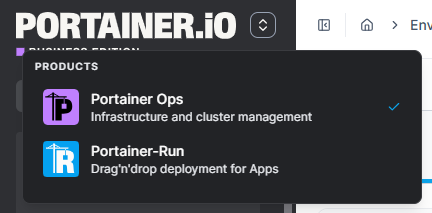
Once this is complete you will be in the Portainer Business interface. From here you can access Portainer-Run by clicking the switcher icon ![](https://content.gitbook.com/content/GwxJJZcdHkdw08WBsjrl/blobs/pabOpXKxhWsplkszwsjZ/switcher-icon.png) in the top left. This will show a dropdown list of the different products available to you, including Portainer-Run.

<figure><img src="https://content.gitbook.com/content/GwxJJZcdHkdw08WBsjrl/blobs/s4OaSlgG2SlGBFSQQMOn/addon-switcher.png" alt=""><figcaption></figcaption></figure>

Click on the **Portainer-Run** option to access the Portainer-Run UI.
{% endstep %}

{% step %}

### Complete the initial setup

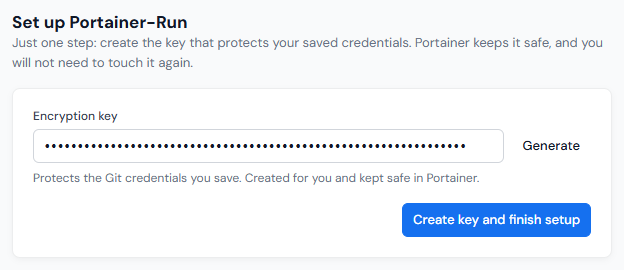
One last step before we're ready to go - when you first access Portainer-Run as an administrator you'll be asked to set an encryption key. This key encrypts the saved credentials used by Portainer-Run. You can click **Generate** to generate a key for you, or enter one manually.

<figure><img src="https://content.gitbook.com/content/GwxJJZcdHkdw08WBsjrl/blobs/DYf45WDrEgZirKyQdJ9O/portainer-run-setup-encryption-key.png" alt=""><figcaption></figcaption></figure>

Once you have a key entered, click **Create key and finish setup**.
{% endstep %}

{% step %}

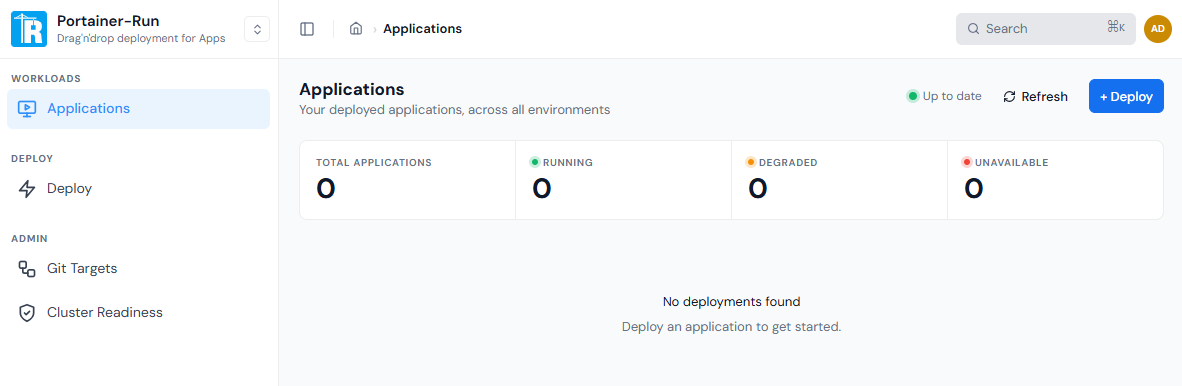
### You're done!

You have now installed Portainer-Run. Enjoy!

<figure><img src="https://content.gitbook.com/content/GwxJJZcdHkdw08WBsjrl/blobs/yG3ikHlvdVSxgJ0ITs1t/portainer-run-fresh-install-ui.png" alt=""><figcaption></figcaption></figure>
{% endstep %}
{% endstepper %}

## What's next

* [Requirements](/portainer-run/requirements): if you skipped ahead, check you have everything in place.
* [Initial configuration](/portainer-run/initial-configuration): to get Portainer and Portainer-Run configured for optimal usage.
* [Using Portainer-Run](/portainer-run/user/overview): a full tour of the interface once you're up and running.


# Initial configuration

If you have completed the [Quick Start](/portainer-run/quick-start) steps, Portainer-Run is ready to use. However we do recommend a few steps to get yourself set up and working efficiently, especially if you are in a multi-user environment.

## In Portainer

The following steps are completed within Portainer itself as an admin user.

{% stepper %}
{% step %}

### Set up users

If you are in a multi-user environment it's likely you already have users set up. If not, and you're wanting to provide multiple users with access to Portainer-Run, you will first need to set them up as Portainer users. Portainer-Run shares an [authentication system](https://docs.portainer.io/admin/settings/authentication) with Portainer, so a user must exist in Portainer in order for users to log into Portainer-Run.

When using internal authentication, users can be set up under **Users**. When using an external authentication provider, users will usually be pre-provisioned at your upstream auth system (Active Directory, LDAP, or an OAuth provider) and should be provisioned there.
{% endstep %}

{% step %}

### Add users to Teams

Access control to Portainer-Run is done via [Teams](https://docs.portainer.io/admin/user/teams) in Portainer. A `portainer-run` team is set up by the installer script and is configured to provide users within the team with access to Portainer-Run only (ie, not Portainer Business itself), so you can add your Portainer-Run users to this team. Alternatively you can create other teams and give them access to Portainer-Run as well.
{% endstep %}

{% step %}

### Give users/teams access to environments

Portainer-Run inherits the RBAC settings from Portainer. The `portainer-run` team will be configured with access to your environment out of the box. If you add any additional teams (or users to new teams) you will need to [give those teams access to the environment](https://docs.portainer.io/admin/environments/environments#manage-access) as well.
{% endstep %}

{% step %}

### Create namespaces

Deployments in Portainer-Run are created in [namespaces](https://docs.portainer.io/user/kubernetes/namespaces) on your Kubernetes cluster. When creating the deployment, the user will choose the namespace to deploy to. The installer script creates a `portainer-run-apps` namespace for users to deploy into and gives the `portainer-run` team access to this namespace. You can also create additional namespaces in Portainer and [configure access to them](https://docs.portainer.io/user/kubernetes/namespaces/access) for your users and teams.
{% endstep %}
{% endstepper %}

## In Portainer-Run

The following steps are performed in Portainer-Run as an admin user. You can access Portainer-Run from within Portainer using the switcher in the top left.

{% stepper %}
{% step %}

### Set Portainer-Run configuration options

Portainer-Run should work out of the box for you now, but you may want to adjust a few settings. As an administrator, go to **Admin** and click **Settings**.

Here you can adjust the [Portainer-Run configuration](/portainer-run/user/admin/settings). We'd recommend setting an Anthropic or OpenAI API key here in order to use the [Assistant](/portainer-run/user/assistant) functionality.
{% endstep %}

{% step %}

### Create a Git Target

Portainer-Run uses Git as the "source of truth" when deploying applications. When an application is created in Portainer-Run, the code the user provides is uploaded to a Git repository, and Portainer then deploys that code from the Git repository into the environment and namespace selected. Configuration data (ie the manifest) is stored in Git alongside the code itself. This provides the ability for users to roll back to previous versions of their code if needed.

These Git repositories are provided via [Git Targets](/portainer-run/user/admin/git-targets) in Portainer-Run.

To add a GIt Target, access Portainer-Run as an administrator and click **Git Targets** in the left menu.

Here you will see a list of GIt Targets that have been configured. In a fresh install there will be none listed. Click the **Add Git Target** button in the top right to add a new GIt Target.

Fill out the details for your Git Target in the form. Portainer-Run has pre-configured providers for GitHub, GitLab and Gitea, but you can use any Git provider as well by choosing `other.`

{% hint style="info" %}
You can find more information on setting up a Git Target under [Git Targets](/portainer-run/user/admin/git-targets).
{% endhint %}

You can choose to create your Git Target as a **Shared target**, making it accessible to other users and teams with access to Portainer-Run. We recommend doing this to provide teams with a centralized, controlled location to store their application code.

Once you have filled out the form, click **Test connection** to ensure your details are all correct. If there are any issues connecting to your Git repo they will be shown.

When you're ready, ciick **Save** to create your Git Target.
{% endstep %}
{% endstepper %}


# Overview

Once connected, Portainer-Run's navigation is organized into five areas: **Workloads**, **Deploy**, **AI agents**, **Admin** (visible to admins only), and the always-available **Assistant** panel (if an Anthropic or OpenAI key has been configured). This section walks through each in turn, plus the **MCP** endpoint for deploying from AI coding tools without touching the UI at all.

* [**Applications**](/portainer-run/user/applications): the main operational view and the page you land on after login. Shows status, logs, metrics, and edit controls for everything Portainer-Run has deployed.
* [**Deploy**](/portainer-run/user/deploy): deploy an application straight from AI-generated source files.
* [**Connect your agent**](/portainer-run/user/mcp#connect-your-agent): create a key and connect an AI assistant such as Claude Desktop to Portainer-Run. Available to every user.
* [**Admin**](/portainer-run/user/admin): visible only to Portainer admins.
  * [Git Targets](/portainer-run/user/admin/git-targets): manage personal and shared repository connections.
  * [Cluster Readiness](/portainer-run/user/admin/cluster-readiness): environment health checks and enable/disable controls.
  * [Runtime updates](/portainer-run/user/admin/runtime-updates): redeploy applications on the latest image of their runtime.
  * [Settings](/portainer-run/user/admin/settings): for Portainer-Run's configuration.
* [**Assistant**](/portainer-run/user/assistant): a persistent, context-aware chat panel available on every page.
* [**MCP**](/portainer-run/user/mcp): deploy applications directly from Claude Desktop, Claude Code, or any MCP-capable client.

A quick note on what determines what you see: everything in Portainer-Run is governed by the Portainer RBAC role of the account behind your personal access token. Non-admins won't see the Admin section at all. See [Roles and RBAC](/portainer-run/architecture/roles) for the full picture.


# Applications

Applications is the primary operational view in Portainer-Run, and the page you land on after logging in. There is no separate Dashboard; Applications serves that role.

## What it shows

Applications lists every deployment tagged `managed-by=portainer-run` across all Kubernetes environments your token can reach. Workloads deployed through Portainer's own UI or `kubectl` directly won't appear here. See [Notes on scope](#notes-on-scope) below.

Each row shows:

| Column            | What it shows                                                                                                                                                                                                                                                                                                                                 |
| ----------------- | --------------------------------------------------------------------------------------------------------------------------------------------------------------------------------------------------------------------------------------------------------------------------------------------------------------------------------------------- |
| **Name**          | The application's name, with a line underneath showing who deployed it and when (for example "Deployed by alex • 3 days ago").                                                                                                                                                                                                                |
| **Environment**   | Which Kubernetes environment (cluster) the application runs in.                                                                                                                                                                                                                                                                               |
| **Project Space** | The Kubernetes namespace the application is deployed into.                                                                                                                                                                                                                                                                                    |
| **Health**        | A plain-English status: for example "Your app is live and running," or a reason when something's wrong, such as "App keeps crashing (4 restarts)," "Can't download the image," or "No node has enough resources." Transient pod recycling (OOMKilled) is suppressed until three or more restarts, so a single blip doesn't read as a problem. |
| **Access**        | A **Launch** link for reaching the application at its Ingress address.                                                                                                                                                                                                                                                                        |
| **Logs**          | A button opening the application's logs directly.                                                                                                                                                                                                                                                                                             |
| **Restart**       | A button triggering a rolling restart.                                                                                                                                                                                                                                                                                                        |

## Deploying from here

A **+ Deploy** button in the page header takes you straight to [Deploy](/portainer-run/user/deploy): drop in the files an AI coding tool produced and Portainer-Run handles the rest.

## Application detail panel

Clicking any application opens a detail panel. By default, it's kept simple, showing only the tabs most people need day to day:

| Tab          | What it shows                                                                                                                                                                                                                                                                                                                                                                                                                            |
| ------------ | ---------------------------------------------------------------------------------------------------------------------------------------------------------------------------------------------------------------------------------------------------------------------------------------------------------------------------------------------------------------------------------------------------------------------------------------- |
| **Overview** | The application's status, its address, and its environment variables. See [Overview](#overview) below.                                                                                                                                                                                                                                                                                                                                   |
| **Metrics**  | CPU and memory sparklines, polled periodically via `metrics.k8s.io`. Requires metrics-server on the cluster.                                                                                                                                                                                                                                                                                                                             |
| **Logs**     | Streamed or fetched pod logs with severity filtering and text search. The **Analyse with AI** button gathers logs, pod conditions, and Kubernetes events and sends them to the configured AI provider for triage. This covers failure modes where no application logs exist yet, such as scheduling failures, image pull errors, or resource constraints, because it reads from events rather than relying solely on application output. |
| **Edit**     | Update the application's deployment, exposure, size, and environment variables, or upload revised code. See [Edit](#edit) below.                                                                                                                                                                                                                                                                                                         |

A **Show technical details** button reveals two further tabs for anyone who needs a deeper level of control:

| Tab               | What it shows                                                                                                  |
| ----------------- | -------------------------------------------------------------------------------------------------------------- |
| **App internals** | Per-container configuration: image, ports, pull policy, resource limits, environment variables, volume mounts. |
| **Revisions**     | ReplicaSet history, most recent first, each with a **Rollback** button.                                        |

### Overview

The Overview tab is deliberately simple:

* **Status**: a plain-English summary, for example "Your app is live and running."
* **Address**: an **Open your app** button (the same action as the Access link on the Applications list) alongside a text link to the application.
* **Environment variables**: every configured variable and its value. Anything that looks like a password, key, or other secret is masked by default, with a **Reveal** button to show it.

### Edit

The Edit tab covers everything needed to change a running application, organized into sections:

* **Current Deployment**: read-only details of what's currently running, including the runtime image, the start command, the source path, and the branch it was deployed from.
* **Exposure**: **Hostname** and **Ingress class** fields. Applications are always exposed through an Ingress. The hostname must be a full hostname such as `myapp.example.com`, with no scheme, port, or path, using lowercase letters, numbers, and hyphens. Changes are applied with the **Save Exposure** button.
* **Size**: the application's [size](/portainer-run/user/deploy#size). Choosing Medium or Large requires a reason. Apply the change with **Save Size**, which restarts the application.
* **App Settings**: add, update, or remove environment variables. Values are stored in the application's Kubernetes Secret, and **Save Settings** restarts the application straight away. You need permission to read and write Secrets in the application's namespace.
* **Upload updated files**: select a folder or individual files to replace the deployed code with an updated version. A **Commit & Restart** button commits the selected files to the repository and redeploys and restarts the application. This isn't available for applications deployed from an existing Git repository: change the files in that repository and restart the application instead.

### Redeploy

**Redeploy** restarts the application on a freshly pulled image of its runtime, for example after a runtime security release. Unlike **Restart**, which reuses the image already cached on the node, Redeploy commits a change to the application's manifest in Git so the new pods pull the image again. It appears in the page header after you select **Show technical details**.

Redeploy needs edit access to the application, and is only available for applications deployed through Portainer-Run. If you are the person who last deployed or updated the application, Portainer applies the change straight away. Otherwise it's applied the next time Portainer applies the application's stack from Git. Administrators can redeploy many applications at once from [Runtime updates](/portainer-run/user/admin/runtime-updates).

## Resource allocation

Every application receives a resource request and limit based on its [size](/portainer-run/user/deploy#size). **Small**, the default, requests 0.1 CPU / 1 GiB memory with a limit of 1 CPU / 4 GiB memory. Medium and Large are two and four times that. The size can be changed afterward from the **Edit** tab.

## Supported application types

No additional infrastructure is required, but it's worth knowing what can and can't run before you plan your rollout:

| Detected from                                 | Runtime          |
| --------------------------------------------- | ---------------- |
| `package.json` or `server.js`                 | Node.js 22       |
| `requirements.txt` or any `.py` file          | Python 3.13      |
| Any `.php` file                               | PHP 8.4 (Apache) |
| `Gemfile` or any `.rb` file                   | Ruby 3.4         |
| Static assets only (HTML/CSS/JS/images/fonts) | nginx            |

Deploy supports single-container applications only, with no build or compile step. Go, Java, Rust, .NET, and any other language requiring compilation are out of scope.

## Notes on scope

Portainer-Run only surfaces deployments it created itself, filtered by the `managed-by=portainer-run` label. Anything deployed through Portainer's own UI or `kubectl` won't show up on this page.

Persistent storage volumes can't be modified after deployment. PVCs are created at deploy time and are untouched by the Edit tab. If you need to resize or reconfigure storage, that has to happen outside Portainer-Run.


# Deploy

Deploy is how applications get onto Kubernetes in Portainer-Run. Drop in the files Claude, Cursor, or any other AI coding tool generated, and Portainer-Run handles runtime detection, dependency installation, Git commit, and Kubernetes deployment automatically. No Dockerfile, no CI pipeline, no container registry, and no platform engineering ticket.

## Two ways to provide source

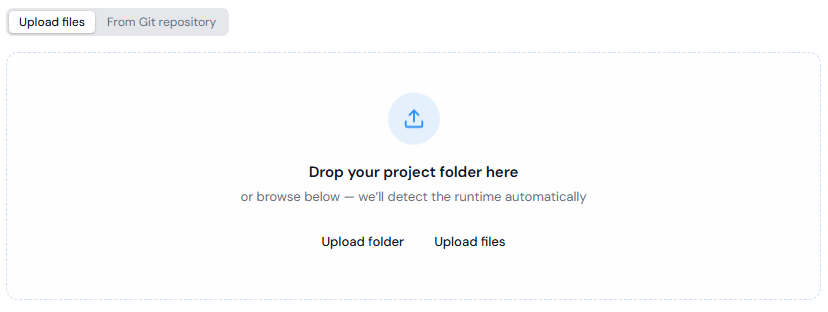
**File upload**: upload or drag in the files your AI tool produced. Portainer-Run commits those files to your configured Git target before deploying.

<figure><img src="https://content.gitbook.com/content/GwxJJZcdHkdw08WBsjrl/blobs/kByawB87tS9p9oZlzBx0/deploy-upload-files.png" alt=""><figcaption></figcaption></figure>

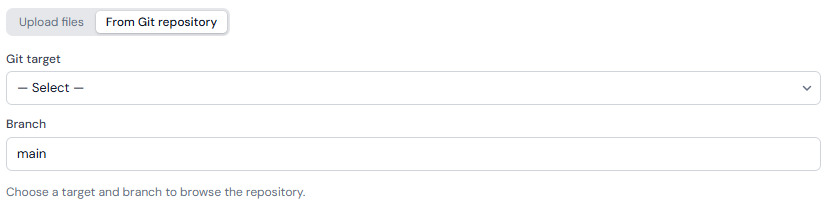
**Existing Git repository**: instead of uploading files, select a configured [Git target](/portainer-run/user/admin/git-targets), branch, and optional subfolder. Portainer-Run fetches the file listing from that repository, detects the runtime, and clones directly from the source repository on every pod start. In this mode, no source files are additionally committed to the manifests repository; only the manifest itself is.

<figure><img src="https://content.gitbook.com/content/GwxJJZcdHkdw08WBsjrl/blobs/9UhYyHB5pjbp0EiDTve3/deploy-git-repo.png" alt=""><figcaption></figcaption></figure>

## Runtime detection

The runtime is detected from the file structure. Detection runs in priority order; the first match wins.

| Signal                                                     | Runtime               |
| ---------------------------------------------------------- | --------------------- |
| `package.json` or `server.js` present                      | Node.js 22            |
| `requirements.txt` present, or any `.py` file              | Python 3.13           |
| Any `.php` file                                            | PHP 8.4 (Apache)      |
| `Gemfile` present, or any `.rb` file                       | Ruby 3.4              |
| All files are static assets (HTML, CSS, JS, images, fonts) | nginx                 |
| No match                                                   | nginx (safe fallback) |

If your uploaded files include a `.env.example`, Portainer-Run detects it and presents an editable list of keys before deploying. Keys whose names look like secrets (for example those containing `PASSWORD`, `SECRET`, `TOKEN`, `API_KEY`, `PRIVATE_KEY` or `AUTH`) are masked in the form. Masking only affects how the value is displayed: every environment variable value is stored in a Kubernetes Secret (`<appname>-app-secrets`) rather than committed to Git, so the manifest in your repository never contains a value.

If the app is an nginx site and your upload contains exactly one HTML file and no `index.html`, Portainer-Run renames that file to `index.html` so nginx serves it at `/`.

## Size

Each application is given a T-shirt size, which sets its CPU and memory. **Small** is the default and fits most apps.

| Size   | CPU requested / limit | Memory requested / limit |
| ------ | --------------------- | ------------------------ |
| Small  | 0.1 / 1               | 1 GiB / 4 GiB            |
| Medium | 0.2 / 2               | 2 GiB / 8 GiB            |
| Large  | 0.4 / 4               | 4 GiB / 16 GiB           |

Choosing Medium or Large requires a reason, between 10 and 500 characters, explaining why the app needs more than Small. The reason is saved with the app in Git and shown to anyone who views it.

## What happens on deploy

Up to four init containers run in sequence before the application starts, each conditional on what's needed:

1. **vibe-web-guard**: present for PHP and nginx only. Configures the web server to refuse requests for dotfiles and dot directories (such as `.env` and `.git`), so they are never served from the web root. `/.well-known/` stays reachable.
2. **vibe-sync**: always present. Clones the source files from Git into a PersistentVolume. The repository's `.git` directory is removed from the application's directory after the clone.
3. **vibe-install**: present for Node.js, Python, Ruby, and PHP. Runs the runtime's dependency installer (`npm install`, `pip install`, `bundle install`, or `composer install`) against the PVC. Skipped entirely for nginx and static deployments.
4. **vibe-env**: always present. Writes a `.env` file to the PVC from the application's Kubernetes Secret, so the application works whether or not it uses a dotenv library itself. The values are also supplied to the application as environment variables. For nginx deployments no `.env` file is written, and any `.env` left by an earlier version is removed.

None of this requires a build step. Once the init containers finish, the main application container starts against the pre-populated PVC using a stock public runtime image, with resources set by the app's [size](#size). See [Applications](/portainer-run/user/applications) for how to change the size afterward.

The manifest and (for file-upload deployments) the source files are committed to your Git target, and Portainer reconciles the change onto the cluster the same way it does for every deployment. See [Architecture](/portainer-run/architecture/overview) for the full flow, and [Git Targets](/portainer-run/user/admin/git-targets) for where things land in the repository.

## Updating a deployed app

Any update follows the same path as the initial deploy, and is also available directly from an application's **Edit** tab via **Upload updated files**: select a folder or files and click **Commit & Restart** to commit the change to Git and redeploy. If Portainer can't apply a saved change straight away, Portainer-Run tells you the change is saved in Git and that it applies the next time Portainer checks the app's stack for changes. Alternatively, push new commits to the source repository directly if you're using Git-source mode; Portainer's GitOps engine picks up the change on its next reconciliation pass. The PersistentVolume retains its state across pod restarts, so anything the application wrote to disk, including uploaded files and user data, persists through the update. See [Applications](/portainer-run/user/applications) for the full Edit tab reference.

To pull a fresh runtime image, for example after a runtime security release, use **Redeploy** (see [Applications](/portainer-run/user/applications#redeploy)). Administrators can redeploy many apps at once from [Runtime updates](/portainer-run/user/admin/runtime-updates).

## Current limitations

* **Single-container only.** There's no support for multi-service architectures such as sidecars, databases, or message queues.
* **No compiled languages.** Go, Java, Rust, .NET, and anything else requiring a build step before running are out of scope. The init containers install runtime dependencies; they don't compile source code.
* **An Ingress controller is required** for Ingress exposure to actually work. Portainer-Run can create the Ingress resource regardless, but it doesn't install or configure a controller.
* **A default StorageClass is required.** Deploy creates a PVC for every application to hold source files and state. Without a default StorageClass, the PVC stays unbound and the application won't start.

### Deploying without the UI: MCP

Deploying from uploaded files is also available through Portainer-Run's [MCP endpoint](/portainer-run/user/mcp), so an AI coding tool can deploy an application it just generated without a human ever opening Portainer-Run at all. Deploying from an existing Git repository is only available in the browser.


# Admin

The Admin section contains four pages:

* [**Git Targets**](/portainer-run/user/admin/git-targets): manage personal and shared Git repository connections, including the ability to mark targets as shared for all users.
* [**Cluster Readiness**](/portainer-run/user/admin/cluster-readiness): check environments for deployment prerequisites, and enable or disable environments from self-service entirely.
* [**Runtime updates**](/portainer-run/user/admin/runtime-updates): redeploy applications on the latest image of their runtime, for example after a security release.
* [**Settings**](/portainer-run/user/admin/settings): for Portainer-Run's configuration.

Non-admin users don't see this section in the navigation at all. See [Roles and RBAC](/portainer-run/architecture/roles) for how Portainer-Run derives admin status from Portainer itself.


# Git Targets

[Deploy](/portainer-run/user/deploy) in Portainer-Run commits manifests and, for file uploads, source files, to a Git repository. A **Git target** is a stored, encrypted connection to one of those repositories.

## Personal vs. shared targets

Git targets are per-user by default: each user's targets are only visible to themselves. Administrators can additionally mark a target as **shared**, making it available to all users in every deploy flow while remaining read-only for non-admins. Non-admins can select and use a shared target, and run its Test check, but can't edit or delete it. Admins can edit and delete any target, including shared ones.

The Session section of the navigation shows the logged-in Portainer username, with an "admin" badge for admin users, so it's always clear whose targets are personal and who can manage shared ones.

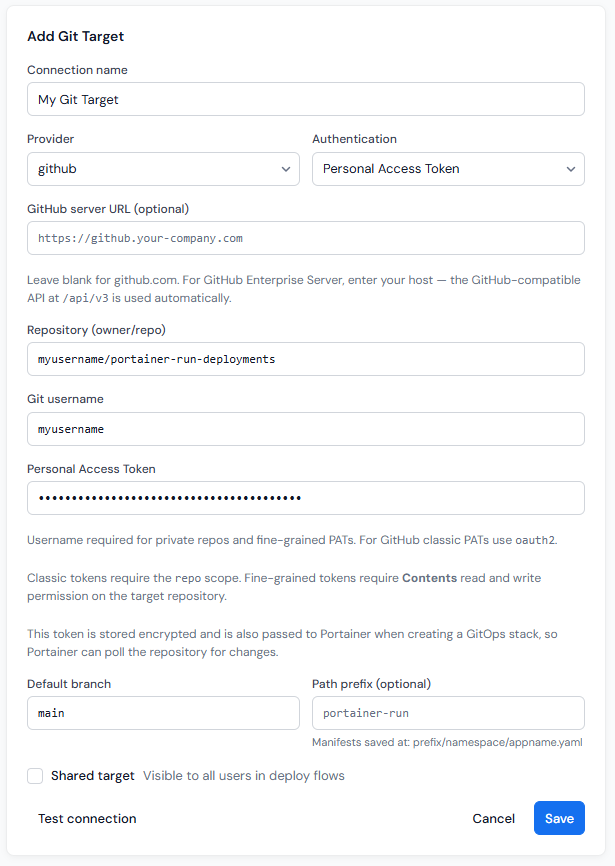
## Configuring a target

Each target stores:

* **Provider**: GitHub, GitLab, Gitea, or Other, and an optional server URL.
* **Authentication** method - Personal Access Token or SSH Key.
* **Repository**, in `owner/repo` form.
* **Git username** and **Personal Access Token** or **SSH private key** (depending on your choice of **Authentication**), encrypted at rest using the encryption key provided during initial configuration. This key must remain identical across every Portainer-Run deploy, or stored targets become unreadable. See [Recovering targets after a key change](#recovering-targets-after-a-key-change).
* A **default branch**.
* An optional **path prefix**.
* **Skip TLS verification**, shown only when the target has a custom server URL. Leave it off unless the Git server's certificate is self-signed or from an internal CA. It is off by default. Your token crosses this connection, so an attacker on the network path could intercept it while this is on, and a certificate from a public CA, such as Let's Encrypt, is the safer choice. The setting applies to that target only: Portainer-Run's calls to the Git server, the clone of an app's source, and the stack Portainer uses to pull the manifests each follow the setting of the target they use. A stack created by an earlier release keeps skipping verification until you untick it in the stack's Git settings in Portainer, or delete and redeploy the app.
* Whether the GIt target is a **Shared target** (ie, available to other Portainer-Run users or just the user that created it).

<figure><img src="https://content.gitbook.com/content/GwxJJZcdHkdw08WBsjrl/blobs/2bMNJA1Nc6nLomkCd11E/git-target-add.png" alt=""><figcaption></figcaption></figure>

### Token scopes

<table><thead><tr><th width="253">Provider</th><th>Requirement</th></tr></thead><tbody><tr><td>GitHub (fine-grained PAT)</td><td>Contents (read and write) permission on the target repository.</td></tr><tr><td>GitHub (classic PAT)</td><td><code>repo</code> scope.</td></tr><tr><td>GitLab / Gitea</td><td>An access token with equivalent read/write repository permissions.</td></tr></tbody></table>

### GitHub Enterprise Server

Keep the provider set to **GitHub** and enter your server host in the GitHub server URL field. Portainer-Run uses the GitHub-compatible REST API at `/api/v3` on that host. Don't use the **Other** provider for GitHub Enterprise; that path targets the Gitea API instead and won't work.

### Self-hosted GitLab

Keep the provider set to **GitLab** and enter your server host in the GitLab server URL field. Leave it blank for gitlab.com.

## Testing a target

The **Test** button on each target checks connectivity and reports read and write permissions. For GitHub, this uses the collaborator permissions API, which works correctly with fine-grained PATs.

### Recovering targets after a key change

Git targets deleted because of a key change are not lost. When you continue with a new key, Portainer-Run first copies each target it deletes into the `connections_orphaned` table in `data/portainer-run.db`. The same happens on the first start after upgrading from 1.3, if a key change had already been acknowledged.

To get the targets back, restore the key that encrypted them in Portainer, copy the rows back, and restart the pod:

```bash
kubectl exec -n <namespace> <run-pod> -- node -e "const db = new (require('node:sqlite').DatabaseSync)('/app/data/portainer-run.db'); db.exec('INSERT OR IGNORE INTO connections SELECT id, name, type, encrypted_payload, owner_id, shared, created_at FROM connections_orphaned; DELETE FROM connections_orphaned WHERE id IN (SELECT id FROM connections)')"
```

Targets created under the key you just replaced will then show as unreadable. You can recover them the same way.

## Where things land in the repository

Regardless of which deploy path is used, Portainer-Run keeps a consistent structure so deployments across environments and namespaces stay cleanly separated within the same repository:

* Manifests: `<path prefix>/<env-name>/<namespace>/<appname>.yaml`
* Source files: `<path prefix>/<env-name>/<namespace>/<appname>/src/`

The environment name is lowercased, with any run of characters other than letters or numbers replaced by `-`. The path prefix is the optional one set on the Git target.

## Deleting an application

When you delete an application and tick **Also remove from Git**, its directory is deleted from the repository in a single commit:

* **GitHub** uses the Git Data API tree approach, removing all files under a directory in one commit regardless of file count, matching what the GitHub UI's "Delete directory" button does.
* **GitLab** uses a batch delete via the commits API.
* **Gitea** implements the equivalent behavior.

## Next: Cluster Readiness

Git Targets sits alongside [Cluster Readiness](/portainer-run/user/admin/cluster-readiness) in the Admin section. One governs where deployments are committed, and the other governs which environments can receive them at all.


# Cluster Readiness

Cluster Readiness is an admin-only page that checks each Kubernetes environment for the prerequisites Portainer-Run deployments depend on, and gives administrators a way to remove an environment from self-service entirely.

## What it checks

For each environment, Cluster Readiness reports on:

* **Ingress controller availability**
* **LoadBalancer provisioning**
* **Storage class configuration**
* **Node health**
* **GPU node availability**

Checks run when you click **Run checks**. Each check reports a plain-English result, so an administrator doesn't need to interpret raw cluster state to know whether an environment is actually ready for business builders to deploy onto.

## Disabling an environment

Administrators can disable an environment directly from this page. Once disabled:

* It's hidden from all dropdowns and views for non-admin users.
* It's blocked from receiving new deployments for **everyone**, including admins.
* Non-admin users see a notice on [Applications](/portainer-run/user/applications) if environments have been hidden from them.

This is the mechanism to use if a cluster isn't ready yet (missing storage class, no ingress controller) or shouldn't be self-serve for policy reasons, rather than relying on users to know not to deploy there.

## Where this state lives

Disabled state is stored in a ConfigMap (`portainer-run-config`, in the `kube-system` namespace) and persists across Portainer-Run restarts. On startup, the server tries each connected environment in turn to find one with access to `kube-system`. The first that succeeds is used for both reads and writes of this state.

## How this interacts with MCP

The `list_environments` MCP tool excludes any environment an admin has disabled here, so an AI coding tool deploying via [MCP](/portainer-run/user/mcp) sees the same restricted environment list a human user would see in the UI.


# Runtime updates

Runtime updates lets an administrator redeploy applications on the latest image of their runtime, for example after a runtime security release. It's in the **Admin** section of the navigation, and only administrators can use it.

Portainer-Run runs applications on stock public runtime images, so a running pod keeps using the image its node already pulled until the pod is recreated. A redeploy makes the application's pods pull the image again.

## Redeploying apps

The page lists the applications Portainer-Run has deployed across every environment you can reach. Each row shows:

| Column             | What it shows                                                  |
| ------------------ | -------------------------------------------------------------- |
| **Name**           | The application's name.                                        |
| **Environment**    | The Kubernetes environment the application runs in.            |
| **Project space**  | The Kubernetes namespace the application is deployed into.     |
| **Runtime**        | The application's runtime, for example Node.js 22.             |
| **Image**          | The runtime image the application uses.                        |
| **Running digest** | The digest of the image each pod is running, one line per pod. |
| **Pods started**   | When each pod started.                                         |
| **Status**         | The outcome of a redeploy you've started from this page.       |

To redeploy:

1. Use the runtime filter, the search box, or the sort menu to find the applications you want. Select **Refresh** to reload the list.
2. Select the applications. Applications without a manifest in Git can't be redeployed and can't be selected.
3. Select **Redeploy** in the bar that appears.

Each redeploy is a commit to the application's manifest in Git. Portainer then applies the change to the cluster, and the new pods pull the image again.

If an environment can't be reached, a warning names it and the rest of the list still loads.

To redeploy a single application, open it and use **Redeploy** instead. See [Applications](/portainer-run/user/applications#redeploy).


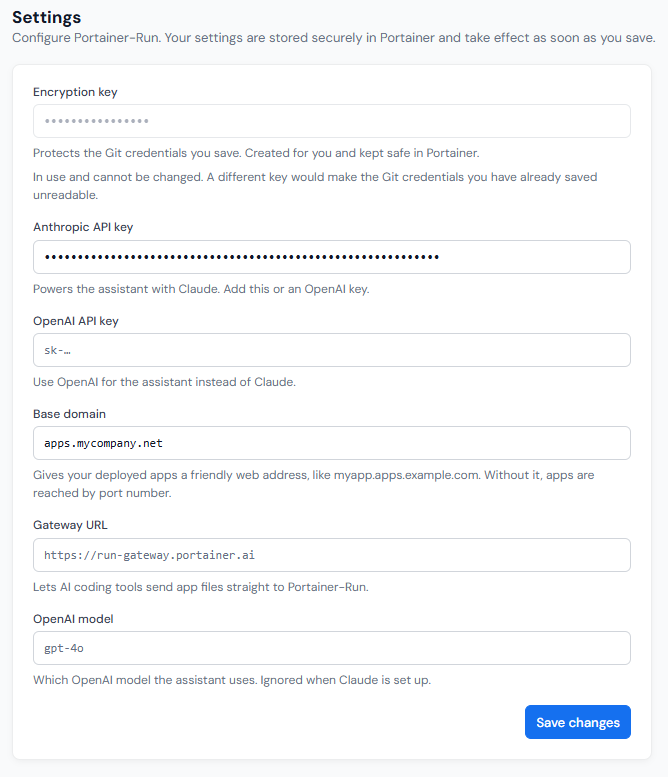
# Settings

This section contains the Portainer-Run configuration settings, and is only available to administrators.

The following options are available:

| Field/Option      | Overview                                                                                                                                                                                |
| ----------------- | --------------------------------------------------------------------------------------------------------------------------------------------------------------------------------------- |
| Encryption key    | The encryption key that was added during initial setup of Portainer-Run, used to encrypt credentials used by Portainer-Run. This cannot be changed.                                     |
| Anthropic API key | An Anthropic API key for use with the [Assistant](/portainer-run/user/assistant) functionality. Either this or the OpenAI API key option must be set to enable the Assistant.           |
| OpenAI API key    | An OpenAI API key for use with the [Assistant](/portainer-run/user/assistant) functionality. Either this or the Anthropic API key option must be set to enable the Assistant.           |
| Base domain       | The base domain to apply to applications deployed in Portainer-Run.                                                                                                                     |
| Gateway URL       | The URL to the Portainer-Run gateway. This gateway lets AI coding tools send application files directly to Portainer-Run, avoiding file size limitations that may otherwise be applied. |
| OpenAI model      | Specifies the OpenAI model to use when using OpenAI for the [Assistant](/portainer-run/user/assistant). This field is ignored when using Anthropic as the AI provider.                  |

<figure><img src="https://content.gitbook.com/content/GwxJJZcdHkdw08WBsjrl/blobs/vaSgj4cykbWyFMav74sx/portainer-run-admin-settings.png" alt=""><figcaption></figcaption></figure>


# Assistant

The Assistant is a persistent chat panel available on every page in Portainer-Run. It's context-aware: it knows which page you're on, which application (if any) is open, and which environment you're working in, and answers questions about your services in plain English.

## Requirements

The Assistant requires either an Anthropic or OpenAI API be configured in [Settings](/portainer-run/user/admin/settings). Without one of these set, the Assistant button isn't shown at all.

## What it can do

* **Answer health and performance questions**, automatically fetching diagnostic data (logs, pod conditions, Kubernetes events) before generating a response, rather than asking you to go check those yourself first.
* **Point you to Deploy.** If you ask it to deploy something, it directs you to [Deploy](/portainer-run/user/deploy) rather than generating deployment configuration, Docker Compose files or container image suggestions.
* **Detect scale requests** and open the Edit tab on the relevant application, pre-filled with the requested instance count.

## What it won't do

The Assistant never executes irreversible operations directly. It routes destructive actions (delete, scale down, restart) to the existing UI, so a plain-English request never bypasses the confirmation steps a human would otherwise go through. It's also scoped to container operations only and will decline unrelated questions.

## Session handling

Session history is kept in memory only, and is cleared on disconnect. Nothing from an Assistant conversation persists once the session ends.

## Analyse with AI on the Logs tab

The Assistant's diagnostic-gathering also powers the **Analyse with AI** button on an application's Logs tab. See [Applications](/portainer-run/user/applications) for how that works when you're looking at a single application rather than chatting generally.


# MCP

Portainer-Run exposes a Model Context Protocol (MCP) endpoint at `POST /mcp`, so AI coding tools can deploy applications directly, with no browser and no human clicking through the UI at all. This is the same governed pipeline as [Deploy](/portainer-run/user/deploy), just driven by an MCP-capable client instead of the web interface.

## Connect your agent

Every user has a **Connect your agent** page, under **AI agents** in the navigation. It creates the Portainer API key your AI assistant uses and walks you through adding Portainer-Run to Claude Desktop, so you don't need to create a token in Portainer yourself.

1. Select **New key**, name it (for example after the computer it's on), and enter your Portainer password if asked. Portainer only asks for it when you sign in with Portainer's own user database, not with LDAP or OAuth.
2. Copy the key. It's shown once.
3. Choose how to connect Claude Desktop:
   * **Extension (recommended)**: download the `portainer-run.mcpb` extension, open it to install it in Claude Desktop, and paste the key when asked. The address is filled in for you, and Claude Desktop keeps the key in your system's keychain.
   * **Config file**: for macOS, Linux, or Windows, paste the generated configuration into `claude_desktop_config.json`, then quit and reopen Claude Desktop. This route needs Node.js installed, as described below.

The assistant acts as you, with all of your Portainer rights. Keys never expire, so treat a key like a password. The page lists your keys, and you can revoke any of them; an assistant using a revoked key stops working straight away. If Portainer uses a self-signed or internal certificate, give the extension that certificate (or its CA) in its optional certificate setting.

## Connecting Claude Desktop manually

The following procedure connects Claude Desktop to your Portainer-Run instance so you can work with it from a Claude chat.

### Before you begin

You will need:

* [Claude Desktop](https://claude.com/download) installed and signed in.
* [Node.js version 18 or later](https://nodejs.org/en/download). Node.js includes `npx`, which Claude Desktop uses to run the connector.
* Your Portainer-Run URL and [Portainer API token](https://docs.portainer.io/user/account-settings#access-tokens).

### Add Portainer-Run configuration to Claude desktop

These details differ by operating system, select Windows, MacOS or Linux below.

{% tabs %}
{% tab title="Windows" %}

1. Open Claude Desktop.
2. Select your name at the bottom left, then select **Settings**.
3. In the left menu, select **Developer**.
4. Select **Edit Config**. A file window opens and highlights `claude_desktop_config.json`.
5. Right-click the file, select **Open with**, then select **Notepad**.
6. Add the configuration for your system to the file.
   1. If the file is empty or contains only `{}`, select all the text in the file, delete it, and paste the full configuration for your system.
   2. If the file already contains other settings, don’t delete them.

      1. If the file already has an `"mcpServers": {` section, add a comma after the last entry in that section, then paste the `"portainer-run": { ... }` block on a new line below it.
      2. If the file doesn’t have an `"mcpServers": {` section, add a comma after the last setting in the file, then paste the whole `"mcpServers": { ... }` section on a new line below it.

      In both cases, don’t copy the outer `{` and `}` from the configuration.

{% hint style="info" %}
If you are using a self-signed certificate, you will need the following environment variable set:

```json
"env": { "NODE_TLS_REJECT_UNAUTHORIZED": "0" }
```

For example:

```json
"mcpServers": {
  "portainer-run": {
    "command": "cmd",
    "args": [
      "/c",
      "npx",
      "mcp-remote@latest",
      "https://<your-portainer-host>/addons/portainer-run/mcp",
      "--header",
      "X-API-Key: YOUR_PORTAINER_TOKEN"
    ],
    "env": { "NODE_TLS_REJECT_UNAUTHORIZED": "0" }
  }
}
```

{% endhint %}

```json
{
  "mcpServers": {
    "portainer-run": {
      "command": "cmd",
      "args": [
        "/c",
        "npx",
        "mcp-remote@latest",
        "https://<your-portainer-host>/addons/portainer-run/mcp",
        "--header",
        "X-API-Key: YOUR_PORTAINER_TOKEN"
      ]
    }
  }
}
```

7. Replace `<your-portainer-host>` with your Portainer address (for example `portainer.example.com`) and keep `/addons/portainer-run/mcp` at the end. Replace `YOUR_PORTAINER_TOKEN` with your [API token](https://docs.portainer.io/user/account-settings#access-tokens). Keep the quotation marks.
8. Save the file and close the editor.
9. Restart Claude Desktop. Claude Desktop only reads the configuration when it starts, and closing the window doesn’t quit the app. Select the arrow at the right of the taskbar to show hidden icons, right-click the **Claude** icon, and select **Quit**.
   {% endtab %}

{% tab title="MacOS" %}

1. Open Claude Desktop.
2. Select your name at the bottom left, then select **Settings**.
3. In the left menu, select **Developer**.
4. Select **Edit Config**. A file window opens and highlights `claude_desktop_config.json`.
5. Right-click the file, select **Open With**, then select **TextEdit**. If the file appears with formatting options, select **Format** > **Make Plain Text**.
6. Add the configuration for your system to the file.
   1. If the file is empty or contains only `{}`, select all the text in the file, delete it, and paste the full configuration for your system.
   2. If the file already contains other settings, don’t delete them.

      1. If the file already has an `"mcpServers": {` section, add a comma after the last entry in that section, then paste the `"portainer-run": { ... }` block on a new line below it.
      2. If the file doesn’t have an `"mcpServers": {` section, add a comma after the last setting in the file, then paste the whole `"mcpServers": { ... }` section on a new line below it.

      In both cases, don’t copy the outer `{` and `}` from the configuration.

{% hint style="info" %}
If you are using a self-signed certificate, you will need the following environment variable set:

```json
"env": { "NODE_TLS_REJECT_UNAUTHORIZED": "0" }
```

For example:

```json
"mcpServers": {
  "portainer-run": {
    "command": "npx",
    "args": [
        "mcp-remote@latest",
        "https://<your-portainer-host>/addons/portainer-run/mcp",
        "--header",
        "X-API-Key: YOUR_PORTAINER_TOKEN"
    ],
    "env": { "NODE_TLS_REJECT_UNAUTHORIZED": "0" }
  }
}
```

{% endhint %}

```json
{
  "mcpServers": {
    "portainer-run": {
      "command": "npx",
      "args": [
        "mcp-remote@latest",
        "https://<your-portainer-host>/addons/portainer-run/mcp",
        "--header",
        "X-API-Key: YOUR_PORTAINER_TOKEN"
      ]
    }
  }
}
```

7. Replace `<your-portainer-host>` with your Portainer address (for example `portainer.example.com`) and keep `/addons/portainer-run/mcp` at the end. Replace `YOUR_PORTAINER_TOKEN` with your [API token](https://docs.portainer.io/user/account-settings#access-tokens). Keep the quotation marks.
8. Save the file and close the editor.
9. Restart Claude Desktop. Claude Desktop only reads the configuration when it starts, and closing the window doesn’t quit the app. Select **Claude** in the menu bar, then select **Quit Claude**, or press **Command+Q**.
   {% endtab %}

{% tab title="Linux" %}
{% hint style="info" %}
Claude Linux support is in beta.
{% endhint %}

1. Open Claude Desktop.
2. Select **Claude** in the menu bar, then select **Settings**.
3. In the left menu, select **Developer**.
4. Select **Edit Config**. A file window opens and highlights `claude_desktop_config.json`.
5. Open `claude_desktop_config.json` in your text editor, such as **Text Editor** (GNOME) or **Kate** (KDE).
6. Add the configuration for your system to the file.
   1. If the file is empty or contains only `{}`, select all the text in the file, delete it, and paste the full configuration for your system.
   2. If the file already contains other settings, don’t delete them.

      1. If the file already has an `"mcpServers": {` section, add a comma after the last entry in that section, then paste the `"portainer-run": { ... }` block on a new line below it.
      2. If the file doesn’t have an `"mcpServers": {` section, add a comma after the last setting in the file, then paste the whole `"mcpServers": { ... }` section on a new line below it.

      In both cases, don’t copy the outer `{` and `}` from the configuration.

{% hint style="info" %}
If you are using a self-signed certificate, you will need the following environment variable set:

```json
"env": { "NODE_TLS_REJECT_UNAUTHORIZED": "0" }
```

For example:

```json
"mcpServers": {
  "portainer-run": {
    "command": "npx",
    "args": [
        "mcp-remote@latest",
        "https://<your-portainer-host>/addons/portainer-run/mcp",
        "--header",
        "X-API-Key: YOUR_PORTAINER_TOKEN"
    ],
    "env": { "NODE_TLS_REJECT_UNAUTHORIZED": "0" }
  }
}
```

{% endhint %}

```json
{
  "mcpServers": {
    "portainer-run": {
      "command": "npx",
      "args": [
        "mcp-remote@latest",
        "https://<your-portainer-host>/addons/portainer-run/mcp",
        "--header",
        "X-API-Key: YOUR_PORTAINER_TOKEN"
      ]
    }
  }
}
```

7. Replace `<your-portainer-host>` with your Portainer address (for example `portainer.example.com`) and keep `/addons/portainer-run/mcp` at the end. Replace `YOUR_PORTAINER_TOKEN` with your [API token](https://docs.portainer.io/user/account-settings#access-tokens). Keep the quotation marks.
8. Save the file and close the editor.
9. Restart Claude Desktop. Close the window, then quit from the app’s menu or tray icon. If Claude Desktop still seems to be running, enter `pkill -f claude-desktop` in Terminal. Then reopen it from your applications menu.
   {% endtab %}
   {% endtabs %}

### Verify your connection

1. In Claude desktop, go to **Settings** > **Developer**.
2. Confirm that **portainer-run** is listed with a **Running** status. The first start can take a few seconds while the connector downloads.
3. Start a new chat and try out some of the [available tools](#available-tools).

## Available tools

{% hint style="info" %}
Whatever you see and do in Portainer is exactly what it can see and do through MCP; the same RBAC boundary applies. See [Roles and RBAC](/portainer-run/architecture/roles).
{% endhint %}

<table><thead><tr><th width="209">Tool</th><th>What it does</th></tr></thead><tbody><tr><td><code>get_deploy_options</code></td><td>Call this before deploying. Returns what Portainer-Run would use for this user, the way the Deploy page would: where the app would run (environment and project space), its web address, and where it's stored. It also returns <code>questions</code>, listing only the choices Portainer-Run can't make itself (often none). Accepts optional <code>appName</code>, <code>envId</code>, <code>namespace</code>, <code>gitTargetId</code> and <code>ingress</code>. If the user can't deploy yet, it returns <code>blocked</code> with a message.</td></tr><tr><td><code>list_environments</code></td><td>For technical users. Returns Kubernetes environments accessible with the provided token, excluding any an admin has disabled from deploy flows via <a href="/portainer-run/user/admin/cluster-readiness">Cluster Readiness</a>.</td></tr><tr><td><code>list_namespaces</code></td><td>For technical users. Returns namespaces in a given environment, filtered to exclude system namespaces.</td></tr><tr><td><code>list_git_targets</code></td><td>For technical users. Returns Git targets accessible to the caller (their own targets plus shared targets). If none exist, also returns a message explaining that a Git target is required and must be created in the Portainer-Run UI. <strong>Git targets can't be created via MCP.</strong></td></tr><tr><td><code>list_ingress_classes</code></td><td>For technical users. Returns the IngressClasses defined in an environment (including which one is the cluster default), plus <code>baseDomain</code> and <code>ingressHostRequired</code>. Use it to pick an ingress class when deploying with <code>exposeType: "Ingress"</code>. When <code>ingressHostRequired</code> is <code>true</code>, no base domain is configured, so a full <code>ingress.host</code> must be supplied.</td></tr><tr><td><code>request_upload_session</code></td><td>Starts a file upload for a deployment. Takes no parameters and returns a <code>sessionId</code>, an <code>uploadUrl</code> and an <code>expiresAt</code> time. Upload the complete set of files to <code>uploadUrl</code>, then pass the <code>sessionId</code> to <code>deploy_app</code> as <code>stagedSessionId</code>. A session can be used once and expires after 5 minutes.</td></tr><tr><td><code>deploy_app</code></td><td><p>Deploys previously uploaded source files via the full <a href="/portainer-run/user/deploy">Deploy</a> pipeline.</p><p>Accepts <code>appName</code>, <code>envId</code>, <code>namespace</code>, <code>gitTargetId</code> and <code>stagedSessionId</code> (from <code>request_upload_session</code>), and optional <code>envVars</code> (an array of <code>{ key, value }</code>), <code>ingress</code> (<code>{ host, path, ingressClass }</code>), <code>runtime</code>, <code>branch</code> (defaults to <code>main</code>), <code>size</code> (<code>S</code>, <code>M</code> or <code>L</code>; defaults to <code>S</code>) and <code>sizeReason</code>, which is required with <code>M</code> or <code>L</code>. See <a href="/portainer-run/user/deploy#size">Size</a>. Runtime is auto-detected by default; pass <code>runtime</code> (<code>node</code>, <code>python</code>, <code>php</code>, <code>ruby</code>, or <code>nginx</code>) to override, for example <code>nginx</code> to serve a static site.</p><p>Parses <code>.env.example</code> for environment variables if <code>envVars</code> isn't supplied.</p><p>Applications deployed over MCP are always exposed through an Ingress. The host defaults to <code>&#x3C;appName>.&#x3C;base domain></code> if a base domain is set in <a href="/portainer-run/user/admin/settings">Settings</a>, and <code>ingressClass</code> defaults to the cluster's default IngressClass if not supplied.</p><p>Returns a <code>url</code> for accessing the app, or <code>null</code> if the address is still being assigned, in which case <code>get_app_status</code> returns it once ready.</p></td></tr><tr><td><code>get_app_status</code></td><td>Returns the running status of a deployed application, with a plain summary (Running, Starting up, Stopped, or Having trouble) and a live access <code>url</code> resolved from the Service or Ingress. Takes <code>appName</code>, and <code>envId</code> and <code>namespace</code> when needed. If the app could be in more than one place, it returns a question to ask instead.</td></tr><tr><td><code>redeploy_app</code></td><td>Redeploys an app so its pods pull the latest image of its runtime, for example after a Node.js security release. It commits the change to the app's manifest in Git; Portainer applies it straight away if the caller deployed the app, and otherwise the next time it applies the stack from Git. Needs edit access to the app. Takes <code>appName</code>, and <code>envId</code> and <code>namespace</code> when needed. Call <code>get_app_status</code> afterwards to see it running again.</td></tr></tbody></table>

## The file relay gateway

MCP deployments never send files inline in the `deploy_app` call. The files are uploaded to `uploadUrl` (from `request_upload_session`) through Portainer's hosted relay, `https://run-gateway.portainer.ai`, which avoids the payload-size limits some MCP clients or transports impose. This means the **Gateway URL** must be set in [Settings](/portainer-run/user/admin/settings); without it `deploy_app` fails with "GATEWAY\_URL is not configured". There's nothing for the calling MCP client to configure differently.


# Overview

This section covers how Portainer-Run is built, and specifically how it relates to Portainer itself, the boundary that makes the whole governance model work.

## The high-level flow

```
Builder (browser or MCP client)
  → Portainer-Run (self-service layer)
    → Git repository (sanctioned, scanned, source of truth)
      → Portainer (GitOps reconciliation, control plane)
        → Kubernetes (your clusters, any environment)
```

Portainer-Run never talks to Kubernetes directly, and never holds cluster credentials of its own. Every deployment produced by [Deploy](/portainer-run/user/deploy) is committed to a Git repository first. Portainer, which is already configured to poll and reconcile that repository via GitOps, applies the change onto the cluster from there. Running state always tracks the repository. There's no out-of-band drift, because there's no path to the cluster that skips Git.

This has two direct consequences worth internalizing:

1. **Builders never receive cluster credentials.** They authenticate to Portainer-Run with a Portainer personal access token, and everything they can see or do is bound by that token's Portainer RBAC role. See [Roles and RBAC](/portainer-run/architecture/roles) for the full detail.
2. **Git is the actual source of truth**, not Portainer-Run's own database. If Portainer-Run went away entirely, every application it deployed would keep running as a standard Kubernetes GitOps stack, because nothing proprietary sits between the repository and the cluster.

## Component architecture

```
Browser (React/Vite frontend)
  → Node.js proxy (server.js)
    → Portainer API        (Kubernetes operations, proxied to bypass browser CORS)
    → Anthropic API        (if ANTHROPIC_API_KEY configured)
    → OpenAI API           (if OPENAI_API_KEY configured)
    → GitHub / GitLab / Gitea  (Git target operations)
```

Portainer-Run is a React/Vite frontend served by a Node.js proxy. That proxy does more than serve static assets. It's the component responsible for:

* **Forwarding Kubernetes API calls to Portainer**, bypassing the CORS restrictions a browser would otherwise hit calling Portainer directly.
* **Relaying AI requests** to whichever provider is configured, keeping the API key server-side so it never reaches the browser.
* **Serving the aggregated `/env-status/:envId` endpoint** (see [Performance](#performance-aggregated-status-polling) below).
* **Exposing the `/mcp` endpoint** described in [MCP](/portainer-run/user/mcp).
* **Maintaining a file-backed session cache** and the SQLite database backing [Git Targets](/portainer-run/user/admin/git-targets).

User credentials never appear in server logs, and AI API keys never reach the browser. Both stay entirely server-side.

## Performance: aggregated status polling

At scale, with dozens of clusters and hundreds of workloads, firing individual pod, service, ingress, and node API calls per deployment would saturate both the browser and the Portainer proxy. Portainer-Run avoids this with an aggregated approach:

* The server exposes `/env-status/:envId`, which fans out to Kubernetes in parallel for a single environment (one call each for pods, services, ingresses, and nodes), then aggregates the results into a per-deployment status map (status reason and access URL), cached for 5 seconds keyed by a hash of the token and environment ID.
* The browser fires one request per environment rather than one per deployment, with a client-side concurrency limit of 5 simultaneous environment fetches.
* A resourceVersion fingerprint per environment means that if nothing has changed since the last render, the cached result is applied immediately with no network call at all. The deployment list also refreshes automatically every 30 seconds.

## Session cache and data persistence

The server maintains two things under `/app/data`:

* **`portainer-run.db`**: a SQLite database storing encrypted [Git target](/portainer-run/user/admin/git-targets) credentials.
* **`cache.json`**: a file-backed cache of deployment status. On reconnect, the last known state is shown immediately while live data loads in the background, so the UI never shows a blank slate after a refresh.

Both are keyed appropriately and persist only if `/app/data` is mounted as durable storage. `ENCRYPTION_KEY` must stay identical across every restart and redeploy. It's what makes the Git target credentials in that database readable, and losing or changing it makes them permanently undecryptable.

## Next: Roles and RBAC

The piece that ties all of this together, what a given user can actually see and do inside Portainer-Run, is covered in [Roles and RBAC](/portainer-run/architecture/roles).


# Roles and RBAC

Portainer-Run has no permissions model of its own. Every access decision it makes is derived from Portainer, at the moment a user authenticates, and re-derived on every request. This page covers exactly how that works.

## Authentication

Users log into Portainer-Run on the same URL as Portainer, with their Portainer credentials. There's no separate Portainer-Run account to create, no duplicate user store, and no independent permissions model to keep in sync. The token *is* the identity, and it carries the user's Portainer role with it.

## User access determines cluster visibility

What a user can see is governed by their configured access in Portainer:

* **Environments** are only visible when that user (or a team the user belongs to) has been explicitly given access.
* **Namespaces** work the same way - a user or team needs to be given access to a namespace in order for it to appear as an option under Project Spaces when deploying.

A user only ever sees the environments and namespaces their Portainer account can already reach. Portainer-Run doesn't expand access beyond what Portainer already grants. It's a narrower, friendlier surface onto the same permission boundary.

## Admin vs. non-admin

Portainer-Run derives its own roles from Portainer's: **a user with Role 1 (admin) in Portainer is an admin in Portainer-Run.** There's nothing to configure separately.

<table><thead><tr><th width="411">Capability</th><th width="98">Admin</th><th>Non-admin</th></tr></thead><tbody><tr><td>See the <strong>Admin</strong> navigation section</td><td>Yes</td><td>No</td></tr><tr><td>View or manage <strong>Cluster Readiness</strong></td><td>Yes</td><td>No. Sees a notice on Applications if environments have been hidden</td></tr><tr><td>Enable or disable environments</td><td>Yes</td><td>No</td></tr><tr><td>Create personal <strong>Git targets</strong></td><td>Yes</td><td>Yes</td></tr><tr><td>Mark a Git target as <strong>shared</strong></td><td>Yes</td><td>No</td></tr><tr><td>Edit or delete <strong>any</strong> Git target, including shared ones</td><td>Yes</td><td>Only their own</td></tr><tr><td>Use a shared Git target in a deploy flow</td><td>Yes</td><td>Yes, read-only: can Test and use it, can't edit or delete</td></tr><tr><td>See "admin" badge next to their username</td><td>Yes</td><td>No</td></tr></tbody></table>

Everything else, including [Applications](/portainer-run/user/applications) and [Deploy](/portainer-run/user/deploy), behaves the same for admins and non-admins alike, scoped only by what their token can reach in the underlying cluster.

## Recommended Portainer role for Portainer-Run users

In Portainer, give each Portainer-Run user the **Standard user** role on a namespace of their own, with a resource quota. The Operator and Namespace Operator roles can only restart and scale apps; they can't deploy or edit them. Where a user can view apps but not change them, Portainer-Run says so and points them to their admin for deploy or edit access to that project space.

## How this plays out through MCP

The [MCP endpoint](/portainer-run/user/mcp) enforces exactly the same boundary as the browser UI. A token authenticated over MCP sees the same environments (`list_environments` excludes anything disabled via Cluster Readiness), the same namespaces, and the same Git targets (`list_git_targets` returns the caller's own targets plus any shared ones) that the same user would see logging into the UI directly. There's no separate, looser permission surface for AI coding tools; governance travels with the token, not the client.

## Why this matters

This is the core of Portainer-Run's governance model: it doesn't introduce a new place to define who can do what. Every RBAC decision your Portainer administrators have already made, including who can reach which environments, namespaces, and clusters, is inherited automatically and enforced identically, whether the user is clicking through the Applications page, filling in the Vibe Deploy form, or deploying from an AI coding tool over MCP. There's exactly one place to manage access, and it's the place your platform team already manages it today.


# Welcome to Portainer-Command

Portainer-Command is the safe way to put AI agents to work on your Kubernetes fleet. It sits between AI agents and your clusters: agents can read cluster state, but every change they want to make is forced through a Git pull request that a person approves, and Portainer's GitOps engine delivers it.

<a href="/portainer-command/architecture/overview" class="button secondary" data-icon="buildings">Architecture</a><a href="/portainer-command/requirements" class="button secondary" data-icon="clipboard-list-check">Requirements</a><a href="/portainer-command/installation" class="button primary" data-icon="rocket-launch">Install</a>

***

## Why Portainer-Command exists

Anyone can point an AI agent at `kubectl` today. What most organizations lack is permission: no security team signs off on an agent holding cluster credentials, and no operations lead wants to be on call when it goes wrong. Portainer-Command is the set of guardrails that makes "yes" possible.

It helps two kinds of team:

* **Teams that haven't started.** The built-in [AI Workspace](/portainer-command/using-portainer-command/workspace/workspace) is the on-ramp: an agent with nothing to install, a [prompt library](/portainer-command/using-portainer-command/workspace/prompt-library) of real tasks (security audits, image pinning, network policy baselines, RBAC review), and undo on everything. The governance isn't a tax on getting started. It's the reason you're allowed to.
* **Teams whose engineers already point agents at clusters, officially or not.** Start from the administration side: a fleet-wide [timeline](/portainer-command/using-portainer-command/admin/timeline) of all agent activity, per-environment allow and deny, namespace restrictions, per-user token spend, an [emergency halt](/portainer-command/using-portainer-command/admin/environments#emergency-halt) for an environment or a user, and one-click revert of any agent change. Don't fight the behavior. Govern it.

## What Portainer-Command does

* **Agents can't change a cluster directly.** There is no tool that writes to a cluster. The only write path is a commit: an agent pushes a branch, Portainer-Command turns it into a pull request, and a person who could deploy the change themselves approves it.
* **Reads are scoped and expire.** An agent asks for a read-only kubeconfig for one environment. It only reaches the namespaces that both Portainer lets the user read and an administrator has opened to agents, and it expires on its own.
* **Every action has a person behind it.** An agent acts with its owner's own Portainer credential, and its pull requests are authored with its owner's own Git credential. Portainer-Command never widens anyone's access.
* **Everything can be undone.** Any proposal can be reverted in one click, and an environment can be rolled back to any past state. Both happen as pull requests, too.
* **Spend is visible.** Model token usage and cost are tracked per user and per workspace.
* **The threat model is published.** It documents each threat considered and what stops it. [Download the threat model (PDF)](https://4731999.fs1.hubspotusercontent-na1.net/hubfs/4731999/portainer-command-threat-model.pdf) to share with your security team, or open the **Threat model** page in Portainer-Command.

## How a change happens

{% stepper %}
{% step %}

### A person sets a goal

A user gives a goal to their [AI Workspace](/portainer-command/using-portainer-command/workspace/workspace), or [connects their own agent](/portainer-command/using-portainer-command/connect-your-agent), such as Claude Code or Cursor.
{% endstep %}

{% step %}

### The agent reads the environment

The agent reads live state through a scoped, read-only kubeconfig, and desired state by cloning the environment's manifests from Git.
{% endstep %}

{% step %}

### The agent proposes a change

The agent pushes a branch and opens a proposal. Portainer-Command opens a pull request, authored by the person whose agent made it.
{% endstep %}

{% step %}

### A person approves it

On the [Proposals](/portainer-command/using-portainer-command/proposals) page, someone who holds the rights to deploy the change reviews the diff and approves or rejects it.
{% endstep %}

{% step %}

### Portainer delivers it

Approving merges the pull request, and Portainer GitOps delivers the change to the environment.
{% endstep %}
{% endstepper %}

Anything can then be undone from Portainer-Command, or from Git history.

{% hint style="warning" %}
Portainer-Command assumes GitOps is the source of truth for the environments it governs. If you aren't there yet, Portainer-Command is a good reason to get there.
{% endhint %}

## Where to go next

* New to Portainer-Command? Start with [Requirements](/portainer-command/requirements), then [Install](/portainer-command/installation) and [Initial configuration](/portainer-command/initial-configuration).
* Setting up as a user? Go to [Connect your agent](/portainer-command/using-portainer-command/connect-your-agent) and [Connect to GitHub](/portainer-command/using-portainer-command/connect-to-github).
* Want to understand the guarantees? Read [Architecture](/portainer-command/architecture/overview) and [Security model](/portainer-command/architecture/security).


# Install

Portainer-Command is installed from the Portainer add-ons catalog, as an add-on to your Portainer Business installation.

{% hint style="warning" %}
Ensure you meet the [requirements](/portainer-command/requirements) before installing.
{% endhint %}

{% stepper %}
{% step %}

### Install from the add-ons catalog

As a Portainer administrator, open the add-ons catalog in Portainer and install **Portainer-Command**. For the general add-on install flow, see [Add-ons](https://docs.portainer.io/admin/add-ons) in the Portainer documentation.

There are no install-time options to set. Everything is configured in Portainer-Command after it's installed.
{% endstep %}

{% step %}

### Wait for the installation to complete

The add-on installs into its own namespace, `portainer-addon-portainer-command`, which Portainer marks as a system namespace. It contains:

* The Portainer-Command server, reachable only through Portainer's add-on gateway.
* A PostgreSQL database with an 8 GiB persistent volume, and a NetworkPolicy that only lets Portainer-Command connect to it.
* A generated encryption key for the credentials Portainer-Command stores, and a generated database password. Both are kept across upgrades.

Portainer also places a machine credential in the namespace, which Portainer-Command uses to read its own settings from Portainer.
{% endstep %}

{% step %}

### Open Portainer-Command

Once the installation is complete, click the switcher icon ![](https://1938785147-files.gitbook.io/~/files/v0/b/gitbook-x-prod.appspot.com/o/spaces%2Fypmd3gtxKLcOeVHnIvOD%2Fuploads%2Fgit-blob-171e88fcc37ed27a1af87e75aee7902bbc86e6fb%2Fswitcher-icon.png?alt=media) in the top left of Portainer, and choose **Portainer-Command**.

<figure><img src="https://1938785147-files.gitbook.io/~/files/v0/b/gitbook-x-prod.appspot.com/o/spaces%2Fypmd3gtxKLcOeVHnIvOD%2Fuploads%2FN2koixhWNUydylHASwYK%2Fcommand-menu.png?alt=media&amp;token=523de626-0564-463d-bbb7-5e7e66a078dc" alt="Portainer product switcher showing Portainer-Command"><figcaption></figcaption></figure>

Portainer-Command uses Portainer's authentication, so you're signed in as your Portainer user. Portainer administrators see the **Administration** section in the sidebar.
{% endstep %}

{% step %}

### Configure Portainer-Command

Before anybody can connect an agent, an administrator needs to complete a few settings. Continue to [Initial configuration](/portainer-command/initial-configuration).
{% endstep %}
{% endstepper %}

## Upgrading and uninstalling

Upgrade Portainer-Command from the add-ons catalog. The encryption key and database password carry forward across upgrades, so stored credentials stay readable.

When you uninstall the add-on, its namespace, encryption key, and database volume are left in place, so history survives a reinstall.

{% hint style="info" %}
Portainer issues the add-on a new machine credential on every install, upgrade, or repair. If Portainer-Command reports that Portainer refused its credential, repair the add-on in Portainer.
{% endhint %}


# Initial configuration

After you [install](/portainer-command/installation) Portainer-Command, an administrator needs to complete a few settings before anybody can connect an agent. Then each user completes two one-time steps of their own.

## In Portainer

{% stepper %}
{% step %}

### Check your GitOps sources

Portainer-Command proposes changes into the Git repositories your environments deploy from. Make sure each repository is added as a GitOps source in Portainer, and that it's hosted on GitHub. View the [Portainer Sources documentation](https://docs.portainer.io/user/app-delivery/sources) for details.
{% endstep %}

{% step %}

### Check user access

Portainer-Command has no permissions model of its own. An agent sees exactly what its owner sees in Portainer, and only a person with the rights to deploy a change can approve it. Make sure your users and teams have the environment and namespace access in Portainer that you want their agents to inherit. See [Security model](/portainer-command/architecture/security).
{% endstep %}

{% step %}

### Optional: restrict the default namespace

Portainer grants every user read access to Secrets in an unrestricted default namespace, and Portainer-Command can't take that back. If agents shouldn't be able to read Secrets there, turn on **Restrict access to the default namespace** in each environment's Kubernetes settings. See [Secrets](/portainer-command/using-portainer-command/admin/environments#secrets).
{% endstep %}
{% endstepper %}

## In Portainer-Command, as an administrator

Open Portainer-Command from the switcher in the top left of Portainer, then go to **Administration**.

{% stepper %}
{% step %}

### Set the credential for sessions

Go to **Settings** and find **Portainer credential for sessions**. Click **Create the API key for me**, or paste an administrator's [Portainer access token](https://docs.portainer.io/user/account-settings#access-tokens) and click **Save**.

This lets agents request temporary read-only sessions. Without it, agents can still read manifests and propose changes, but can't read live cluster state. See [Settings](/portainer-command/using-portainer-command/admin/settings#portainer-credential-for-sessions).
{% endstep %}

{% step %}

### Set the transport key

In **Agent gateway transport key**, click **Create the user and key for me**. Portainer-Command creates a Portainer user with access to Portainer-Command only, and stores its key.

Nobody can connect an agent until this is set. On an OAuth or LDAP instance, create the user in your identity provider and paste its token instead. See [Settings](/portainer-command/using-portainer-command/admin/settings#agent-gateway-transport-key).
{% endstep %}

{% step %}

### Optional: enable AI Workspaces

To give users a hosted agent with nothing to install:

1. In **Public Portainer address**, click the suggested address (or type your own) and click **Save**.
2. In **AI Workspaces**, turn on **Enable AI Workspaces**.
3. In **AI Workspace Provisioning**, choose the environment and a dedicated namespace for workspace pods, then click **Create the user and key for me** and **Save**.
4. In **AI Model**, choose a provider, enter its details, click **Test connection**, and **Save**.
5. Review the **Workspace Network** mode. The default, **Allow some**, is a sensible starting point.

See [Settings](/portainer-command/using-portainer-command/admin/settings#ai-workspaces) for every option.
{% endstep %}

{% step %}

### Open environments to agents

Every environment is closed to agents until you open it. Go to **Environments**, click an environment, and on the **Agent configuration** tab:

1. Choose what agents may do: read live state, read GitOps state, and propose changes.
2. Under **Which repository**, choose the repository, branch, and directory the environment deploys from.
3. Under **Which namespaces**, restrict agents to specific namespaces if you want to narrow what they can reach.
4. Click **Save configuration**.

We recommend starting with a development environment, with read access only, and adding proposals once you're comfortable. See [Environments](/portainer-command/using-portainer-command/admin/environments).
{% endstep %}
{% endstepper %}

## In Portainer-Command, for each user

Every user, administrators included, completes two one-time steps under **Setup** in the sidebar. Until they're done, the **Home** page shows them under **Before you start**.

{% stepper %}
{% step %}

### Connect to GitHub

Store your own GitHub credential, so the pull requests your agent opens are authored by you. Without it, your agent can read but can't propose anything, and you can't approve proposals. See [Connect to GitHub](/portainer-command/using-portainer-command/connect-to-github).
{% endstep %}

{% step %}

### Connect your agent, or provision a workspace

Create a connection for the agent you already use, such as Claude Code or Cursor. See [Connect your agent](/portainer-command/using-portainer-command/connect-your-agent).

If AI Workspaces are enabled, you can instead go to **Workspace** and click **Provision my workspace**. See [AI Workspace](/portainer-command/using-portainer-command/workspace/workspace).
{% endstep %}
{% endstepper %}

You're ready to go. Try a task from the [Prompt library](/portainer-command/using-portainer-command/workspace/prompt-library), or ask your agent to list the environments it can reach.


# Requirements

Portainer-Command installs as an add-on to Portainer Business. Before you install it, make sure you have the following in place.

## Portainer Business with add-ons

Portainer-Command is installed from the Portainer add-ons catalog, so you need a [Portainer Business installation](https://docs.portainer.io/start/install) that supports [add-ons](https://docs.portainer.io/admin/add-ons), with a valid license.

## A Kubernetes environment to install on

The add-on installs onto a Kubernetes environment managed by Portainer, running Kubernetes 1.21 or later. The environment needs:

* A **default StorageClass**, or one you choose, that can provision an 8 GiB `ReadWriteOnce` volume for Portainer-Command's database. We recommend a StorageClass that encrypts volumes at rest.
* Enough capacity for Portainer-Command itself, which is small: the add-on requests 50m CPU and 64 MiB of memory, and its database requests 100m CPU and 256 MiB.
* If you plan to use [AI Workspaces](/portainer-command/using-portainer-command/workspace/workspace), capacity for one pod per active user. Each workspace requests 100m CPU and 256 MiB of memory, with a default limit of 2 CPUs and 2 GiB. Workspaces must run on the same cluster as Portainer-Command. To enforce the workspace [network modes](/portainer-command/using-portainer-command/admin/settings#workspace-network), the cluster's CNI must enforce Kubernetes NetworkPolicy.

## Kubernetes environments managed with GitOps

Portainer-Command assumes GitOps is the source of truth for the environments it governs. For each environment you want agents to propose changes to, you need:

* A **GitHub** repository that holds the environment's manifests. Other Git hosts aren't supported yet.
* That repository added as a GitOps source in Portainer.

Agents can still read live state on an environment without a repository, but they can't read its manifests or propose changes.

## Internal authentication for read-only sessions

To let agents read live cluster state, Portainer must use **internal authentication**. On an OAuth or LDAP instance, agents can still read manifests and propose changes, but they can't get read-only sessions. See [Known limitations](/portainer-command/known-limitations#oauth-and-ldap-authentication).

## For each user: a GitHub credential

Proposals are pull requests authored with each user's own Git credential. Every user who wants their agent to propose changes, and every user who approves proposals, needs a GitHub personal access token for the repositories involved. See [Connect to GitHub](/portainer-command/using-portainer-command/connect-to-github).

## Optional: a model provider for AI Workspaces

If you enable AI Workspaces, they need a model to talk to. You can use:

* An Anthropic API key.
* An OpenAI API key.
* Any OpenAI-compatible endpoint, such as an LLM gateway, vLLM, or an Ollama you run yourself.

Users who connect their own agent, such as Claude Code or Cursor, use their own model and don't need this.

## Next step

Once these are in place, continue to [Install](/portainer-command/installation).


# Known limitations

Portainer-Command is in beta. None of the following blocks installing it, but you should know about them before you roll it out.

## GitHub only

Proposals open pull requests on **GitHub**. Other Git hosts aren't supported yet, so the repositories your environments deploy from must be on GitHub for agents to propose changes.

## OAuth and LDAP authentication

Two features rely on Portainer-Command creating Portainer users with a password, which Portainer refuses when it uses OAuth or LDAP authentication:

* **Read-only grants.** On an OAuth or LDAP instance, `request_environment_access` can't issue a kubeconfig, and the tool says so. Agents can still read an environment's manifests and propose changes normally.
* **One-click transport key setup.** An administrator has to create the transport user in the identity provider, sign in as it once to create an access token, and paste the token into **Settings**. See [Settings](/portainer-command/using-portainer-command/admin/settings).

## Async Edge environments

Async Edge agents don't hold a tunnel to Portainer, so no credential can reach their cluster, and live read access is refused for them. Proposals still work: the change travels as Git and reaches the Edge agent through its command queue.

## Two credentials per agent connection

Agent traffic passes through Portainer's add-on gateway, so each MCP client sends two headers: the instance-wide **transport key** to get past the gateway, and the connection's own **agent token** to identify the user. The **Connect your agent** page generates the configuration for you, so this only matters if you configure a client by hand. See [MCP tools](/portainer-command/architecture/mcp#authentication).

## Custom resources aren't readable

A read-only grant covers Kubernetes' built-in resource types. Custom resources, such as Kyverno policies or policy reports, aren't visible to an agent through a grant.

## A proposer can approve their own agent's proposal

An agent has no way to approve a proposal; approval always happens in the Portainer-Command UI. However, no rule stops the person whose agent opened a proposal from approving it themselves, as long as they hold the rights to deploy it.

## AI Workspaces share Portainer-Command's cluster

AI Workspaces must run on the same cluster as Portainer-Command. Running workspaces on a separate cluster isn't supported yet.

## Grants are recorded, not their actions

Portainer-Command records that a read-only grant existed, who held it, why, and for how long. It doesn't yet record which reads were made with it. The service account each grant acts as is shown on the session, so you can match it against your cluster's own audit log.


# Workspace


# AI Workspace

An AI Workspace is your own private, hosted agent: an OpenCode instance that Portainer-Command runs for you as a pod in your organization's cluster, with a chat page to talk to it. There's nothing to install. It already has Portainer-Command's [tools](/portainer-command/architecture/mcp), plus `kubectl`, `helm`, and `git`.

A workspace acts as you. It sees the environments you can see, and everything it proposes is attributed to you, exactly like an agent you [connect yourself](/portainer-command/using-portainer-command/connect-your-agent).

{% hint style="info" %}
**Workspace** only appears in the sidebar when an administrator has enabled AI Workspaces. See [Settings](/portainer-command/using-portainer-command/admin/settings#ai-workspaces).
{% endhint %}

## Provision your workspace

1. In the sidebar, click **Workspace**, then **Manage**.
2. If Portainer needs your password to create the access token your workspace acts with, enter it in **Your Portainer password**. It goes straight to Portainer and is never sent to Portainer-Command.
3. Click **Provision my workspace**.

The workspace pod starts and connects back to Portainer-Command on its own. Nothing connects in to it. Its status moves from **Starting** to **Connected** once it's ready, and **Chat** appears in the sidebar.

Provisioning creates a Portainer access token named `AI Workspace` and an agent connection for the workspace. You still need to [connect to GitHub](/portainer-command/using-portainer-command/connect-to-github) for your workspace to propose changes.

## Chat with your workspace

Click **Chat**, or **Open chat** on the **Manage** view. Type into **Message your workspace…** and send. You can ask it to do things such as list your environments, investigate a failing workload, or propose a change.

While it works, you'll see its reasoning and the tools it calls. Click **Stop** to abort the current task.

When the workspace proposes a change, an approval card appears in the chat. If you can decide the proposal, you can approve it right there. The workspace is then told the proposal was merged, and asked to check that the change rolled out. See [Proposals](/portainer-command/using-portainer-command/proposals).

For ready-made tasks, use the [Prompt library](/portainer-command/using-portainer-command/workspace/prompt-library).

To start over, click **Clear chat** below the chat box, which appears once the conversation has messages, and confirm. This ends the current conversation and empties the transcript. The transcript is hidden from you but not erased, so administrators can still review it.

## Manage your workspace

The **Manage** view shows your workspace's state, where it runs, when it was last seen, and when it expires. Tabs show its **Sessions**, **Proposals**, **Tokens** (model usage and cost), and **Timeline**.

| Action  | What it does                                                                                                                                                                                                                |
| ------- | --------------------------------------------------------------------------------------------------------------------------------------------------------------------------------------------------------------------------- |
| Stop    | Stops the pod. The workspace keeps its identity, credential, and chat history, and connects back in on its own when started. The agent loses its own memory of the conversation, although you can still see the transcript. |
| Start   | Starts a stopped workspace.                                                                                                                                                                                                 |
| Restart | Restarts the workspace pod.                                                                                                                                                                                                 |
| Destroy | Ends the workspace for good. There's no confirmation. Its record and transcript stay readable for review, and you can provision a new one.                                                                                  |

<figure><img src="https://1938785147-files.gitbook.io/~/files/v0/b/gitbook-x-prod.appspot.com/o/spaces%2Fypmd3gtxKLcOeVHnIvOD%2Fuploads%2F18JCfFM0S1ABOuKVP9wC%2Fcommand-AI-workspace.png?alt=media&amp;token=f6ee7dfe-f548-4ef7-8bf0-1e5a70d5e67f" alt="AI Workspace management view"><figcaption></figcaption></figure>

### Idle workspaces

A workspace nobody has used for a while is stopped for you. By default, this happens after 120 minutes, but administrators can change it. When you next open the chat, you'll see **Your workspace is paused**. Click **Start workspace**, and the chat comes back as soon as it reconnects. Sending a prompt or opening the chat resets the idle clock.

### Expiry

A workspace expires 90 days after it's provisioned. An expired workspace can't start again, but its record, transcript, and usage stay readable. Destroy it and provision a new one to continue.

A workspace also stops working if its connection is revoked, for example by an administrator or an emergency halt. Destroy it and provision a new one.

## Settings that affect your workspace

Administrators choose the model your workspace uses, its CPU and memory limits, and what it can reach on the network. With the default network mode, a workspace can only reach an allowlist of domains, such as GitHub and common container registries. If your workspace can't download something it needs, ask an administrator. See [Workspace Network](/portainer-command/using-portainer-command/admin/settings#workspace-network).


# Prompt library

The **Prompt library** holds ready-made tasks for your [AI Workspace](/portainer-command/using-portainer-command/workspace/workspace). Find it under **Workspace** in the sidebar.

To use a prompt, click its card. Portainer-Command opens your workspace chat, starts a fresh conversation, and sends the prompt straight away. Every prompt starts by listing your environments and asking which one to work on. If your workspace is paused, the prompt waits until you start it.

Use **Search prompts…** to filter by title or description.

Every prompt runs through the same rules as any other request. The agent reads with a scoped, read-only credential, and anything it wants to change becomes a [proposal](/portainer-command/using-portainer-command/proposals) for a person to approve.

## Security and policy

Harden what's running, and put guardrails in place for what comes next.

| Prompt                                      | What it does                                                                                   |
| ------------------------------------------- | ---------------------------------------------------------------------------------------------- |
| Build a network policy baseline             | Default-deny ingress per namespace, with allow rules derived from what actually talks to what. |
| Deploy Kyverno and lock down security       | Installs Kyverno and stages a pod-security policy set in audit mode first.                     |
| Audit running workloads for security issues | Privileged containers, root users, host mounts, and missing security contexts, ranked by risk. |
| Review RBAC for over-broad grants           | Finds cluster-admin bindings, wildcard rules, and permissions nothing uses.                    |
| Check secrets hygiene                       | Secrets in environment variables, config maps holding credentials, and stale unused Secrets.   |
| Audit image sources and tags                | Finds `:latest` tags, unpinned images, and images from registries you don't control.           |

## Reliability and health

Find the workloads that will fail badly, before they get the chance.

| Prompt                                         | What it does                                                                       |
| ---------------------------------------------- | ---------------------------------------------------------------------------------- |
| Audit workloads for reliability gaps           | Missing probes, single replicas, no PodDisruptionBudgets, and no anti-affinity.    |
| Triage crashing and pending pods               | Finds everything not running, works out why, and says what would fix each one.     |
| Hunt down OOMKilled workloads                  | Finds containers being killed for memory, and proposes limits that stop it.        |
| Add PodDisruptionBudgets where they're missing | Protects multi-replica services from voluntary disruption taking them all at once. |
| Review node capacity and pressure              | How full the nodes are, what's overcommitted, and what fails first if one dies.    |

## Cost and efficiency

Right-size requests, and reclaim what nothing is using.

| Prompt                                           | What it does                                                                          |
| ------------------------------------------------ | ------------------------------------------------------------------------------------- |
| Tune resource requests against real usage        | Compares requests to actual consumption, and proposes corrections in both directions. |
| Find workloads with no requests or limits at all | Unbounded pods distort scheduling and get evicted first.                              |
| Find idle and abandoned workloads                | Zero-traffic services, scaled-but-unused deployments, and forgotten experiments.      |
| Review persistent volume usage                   | Oversized volumes, orphaned claims, and storage classes doing the wrong job.          |

## Networking and exposure

Control what can talk to what, and what the world can reach.

| Prompt                                     | What it does                                                                      |
| ------------------------------------------ | --------------------------------------------------------------------------------- |
| Map everything exposed outside the cluster | Every LoadBalancer, NodePort, and Ingress, and whether it should be reachable.    |
| Audit Ingress TLS and routing              | Expired-certificate risk, missing TLS blocks, duplicate hosts, and dead backends. |
| Check cross-namespace traffic flows        | Which namespaces talk to which, before you segment them.                          |

## Operations and housekeeping

Audits, upgrades, and cleanups that keep an estate honest.

| Prompt                                         | What it does                                                                |
| ---------------------------------------------- | --------------------------------------------------------------------------- |
| Check live state against the git repository    | What's running that Git doesn't describe, and what changed out of band.     |
| Find deprecated API versions before an upgrade | API versions the next Kubernetes release drops.                             |
| Namespace hygiene sweep                        | Missing quotas and limit ranges, unlabeled namespaces, and leftover debris. |
| Snapshot an environment's health               | One readable status report.                                                 |
| Audit what would survive a cluster loss        | Which state lives only in the cluster.                                      |

<figure><img src="https://1938785147-files.gitbook.io/~/files/v0/b/gitbook-x-prod.appspot.com/o/spaces%2Fypmd3gtxKLcOeVHnIvOD%2Fuploads%2FNCETb21c5vlm5pxBvK7D%2Fcommand-prompt-library.png?alt=media&amp;token=d7ee3e22-a68f-4a62-8d9f-6bc44618390b" alt="Prompt library"><figcaption></figcaption></figure>


# Proposals

A proposal is a change an agent wants to make to an environment. It's a GitHub pull request authored by the person whose agent made it, and nothing reaches the cluster until a person approves it. The **Proposals** page is where proposals are reviewed and decided.

## How a proposal is made

1. The agent clones the environment's manifests through Portainer-Command, edits files, and pushes a feature branch. The push is held inside Portainer-Command, and nothing reaches GitHub yet.
2. The agent opens a proposal. Portainer-Command re-checks the environment's policy (proposals allowed, namespace allowlist, file types, cluster-scoped objects) and refuses the proposal with a reason if it breaks one.
3. Portainer-Command turns the branch into one commit on the real repository, made with the proposer's own [GitHub credential](/portainer-command/using-portainer-command/connect-to-github), and opens a pull request.
4. The proposal appears on the **Proposals** page with its full diff and the agent's summary of what it changed and why.

Each manifest file maps to one Portainer stack. Adding a file creates a workload, changing a file updates it, and removing a file deletes what it deployed.

## Find a proposal

The list shows proposals for the environments you can see in Portainer.

* Use the **All**, **Open**, **Approved**, and **Rejected** tabs to filter by state.
* Use the filter menu to show open proposals that are **Yours to decide** or **Not yours to decide**. A lock icon marks proposals you can't decide.
* Use **Search proposals** to search by title, environment, or proposer.

| Status          | Meaning                                                                                   |
| --------------- | ----------------------------------------------------------------------------------------- |
| Waiting         | Open, and waiting for a decision.                                                         |
| Approved        | Merged and delivered.                                                                     |
| Rejected        | Closed without merging.                                                                   |
| Needs attention | Approved, but something after the merge didn't finish. The proposal says what went wrong. |

## Review a proposal

Click a proposal to see its details:

* **Rationale**: the agent's explanation of what it changed and why.
* **Changes**: each file changed, with a link to its diff on GitHub.

The pull request lists, per file, the kinds of object it creates and the namespaces they land in. It calls out anything a reviewer shouldn't skim past, such as cluster-scoped objects, RBAC, admission webhooks, CRDs, Secrets, and custom resources Portainer-Command doesn't recognize. Where a kind or namespace is chosen by a Helm template, it's listed as **not verifiable** rather than guessed at.

Warnings also appear on the proposal when approving it would do more than merge, for example **Approving removes running workloads** or **Approving installs a Helm release**.

{% hint style="warning" %}
Trust the diff, not the summary. The rationale is written by the agent. Read what the files actually change, and prefer images pinned by digest.
{% endhint %}

## Approve or reject a proposal

To approve, click **Approve and merge**. Portainer-Command:

1. Merges the pull request.
2. Applies the change to the cluster, creating or updating the Portainer stack with **your** credential.
3. Confirms the cluster is running it.

To reject, click **Reject**, optionally enter a reason, and click **Reject proposal**. The pull request is closed without merging, and your reason is posted as a comment on it, so the proposer can see why. A rejected proposal can be put back in the queue with **Reopen**.

### Who can decide a proposal

You approve with your own rights, so you can only decide a proposal you could have deployed yourself. You need:

* Access to the environment in Portainer, with the rights to deploy to it.
* Write access to every namespace the change lands in.
* Environment administrator rights, if the change creates a namespace.
* A [GitHub credential](/portainer-command/using-portainer-command/connect-to-github) stored in Portainer-Command.

If you can't decide a proposal, the page tells you why. You can use **Escalate to…** to ask someone else to decide it. Escalating grants them nothing new.

{% hint style="info" %}
Agents have no way to approve proposals. Approval only happens in the Portainer-Command interface. There is currently no rule stopping you from approving a proposal your own agent opened, so use GitHub branch protection if you need a second reviewer.
{% endhint %}

## Undo a proposal

To undo an approved proposal, click **Undo**, then **Open revert proposal**. Portainer-Command opens a new proposal that restores every file the original changed to what it held before. Nothing deploys until that proposal is approved too.

If a later change touched the same files, you're warned that **A later change is in the way**. Click **Undo anyway** to continue.

To roll a whole environment back to an earlier state, administrators can use [State history](/portainer-command/using-portainer-command/admin/environments#state-history).

## Helm charts

Agents can adopt an upstream Helm chart by vendoring it into the environment's directory. When a proposal adds a new chart, the agent has to declare the namespace the release is installed into.

{% hint style="warning" %}
Removing a Helm chart doesn't uninstall it. Portainer deletes the chart's stack but leaves the release running, including its CRDs and webhooks. The pull request and the approval both say so, and give you the `helm uninstall` command to finish the job.
{% endhint %}


# My sessions

A session is a temporary, read-only credential one of your agents has checked out to read an environment's live state. Each session is a Portainer account scoped to a single environment, acting as you, which deletes itself when it expires. **My sessions** lists every session your agents have held.

## How sessions work

When your agent calls `request_environment_access`, it states a reason and gets a kubeconfig that:

* Points at Portainer's Kubernetes proxy, so the agent never holds a cluster credential.
* Only reaches the namespaces that both you can read in Portainer and an administrator has opened to agents.
* Refuses every write. The refusal comes from the cluster itself.
* Expires on its own, after 60 minutes by default and at most 8 hours.

Your agent can also hand a session back early with `revoke_environment_access`.

## View your sessions

The table shows each session's **Environment**, the **Connection** it was issued to, the **Reason** your agent gave, its **State**, and when it was **Issued** and **Expires / ended**. Use **Search sessions…** and the state filter (**Active**, **Expired**, **Revoked**, or **Unrecorded**) to narrow the list.

Click a session to see its full record, including the Kubernetes service account it acts as. That service account is what appears as the user in your cluster's audit log.

## Revoke sessions

To end a session before it expires, click **Revoke** on the session's page. To revoke several at once, select them in the table and click **Revoke** in the bar that appears.

Revoking takes effect immediately, and there's no confirmation. If your agent still needs access, it simply asks for a new session.


# Connect your agent

A connection lets one MCP-capable agent, such as Claude Code, Claude Desktop, Cursor, or Windsurf, act as you through Portainer-Command. It uses your own Portainer credential, so the agent sees exactly what you see and nothing more. Agents can read; the only way one can change anything is a pull request that a person approves.

{% hint style="info" %}
If **Add connection** is disabled and you see **Agent connections are not set up yet**, an administrator needs to set the [transport key](/portainer-command/using-portainer-command/admin/settings#agent-gateway-transport-key) first.
{% endhint %}

## Create a connection

{% stepper %}
{% step %}

### Add a connection

Under **Setup** in the sidebar, click **Connect your agent**, then click **Add connection**.
{% endstep %}

{% step %}

### Name it and create it

Enter a name in **Name this connection**, such as `Ops laptop`. The name is also given to the Portainer access token Portainer-Command creates for you, so you can tell your tokens apart under **My account** in Portainer.

If Portainer needs your password to issue the token, enter it in **Your Portainer password**. The password goes straight from your browser to Portainer and is never stored. LDAP and OAuth users aren't asked for one.

Click **Create connection**.
{% endstep %}

{% step %}

### Copy the configuration

Portainer-Command shows the configuration for your agent, with your token filled in.

{% hint style="warning" %}
This is the only time the token is shown. Portainer-Command stores only a hash of it and can't display it again. Copy it now.
{% endhint %}

For **Claude Code**, run the command shown in the repository you want the agent to work in. It looks like this:

```bash
claude mcp add --transport http portainer-command https://your-portainer/addons/portainer-command/mcp \
  --header "X-API-Key: ptr_…" \
  --header "X-Command-Token: cmd_…"
```

For any client that reads a JSON configuration file, such as **Cursor**, **Windsurf**, or **Claude Desktop**, add the `mcp.json` snippet shown:

```json
{
  "mcpServers": {
    "portainer-command": {
      "type": "http",
      "url": "https://your-portainer/addons/portainer-command/mcp",
      "headers": {
        "X-API-Key": "ptr_…",
        "X-Command-Token": "cmd_…"
      }
    }
  }
}
```

Click **Done**.
{% endstep %}
{% endstepper %}

Each client needs both headers. `X-API-Key` is the instance-wide transport key that gets requests past Portainer's add-on gateway. It's the same for everyone and identifies nobody. `X-Command-Token` is your connection's own token, and it's what identifies you.

To try it out, ask your agent to list the environments it can reach.

{% hint style="info" %}
To propose changes, you also need to [connect to GitHub](/portainer-command/using-portainer-command/connect-to-github). Without a Git credential, your agent can read but has nothing to open a pull request with.
{% endhint %}

## Manage your connections

The **Connect your agent** page lists your active connections, who each one acts as, when it was **Last used** and by which client (for example `claude-code`), and when it **Expires**. Connections expire after 90 days.

To revoke a connection, click **Revoke** and then **Revoke connection**. This immediately:

* Stops the agent from authenticating. It can't be reconnected; you add a new connection instead.
* Ends any sessions the connection holds.
* Deletes the Portainer access token Portainer-Command created for it.
* Destroys a workspace running on it. A stopped workspace is left in place, but can't start again.

Revoke a connection whenever a machine is lost, a token might have leaked, or you stop using an agent.

{% hint style="info" %}
Deleting a Portainer user doesn't revoke their connections. Revoke the connections too, or have an administrator use [Emergency halt](/portainer-command/using-portainer-command/admin/users#emergency-halt) on the user.
{% endhint %}


# Connect to GitHub

When your agent proposes a change, Portainer-Command commits it with your own GitHub credential, so the commit and the pull request are authored by you rather than by a bot. Your credential is also used to build the copy of an environment's manifests your agent clones, so the agent reads exactly what you can read.

You need a GitHub credential to:

* Let your agent propose changes.
* Approve proposals, because approving merges the pull request as you.
* Roll back an environment, if you're an administrator.

The credential is stored encrypted and never shown again.

## Add your credential

1. Under **Setup** in the sidebar, click **Connect to GitHub**.
2. Enter your **Git username**.
3. Leave **Host URL** empty for github.com. Fill it in only for GitHub Enterprise Server.
4. Enter a **Personal access token** with write access to the repositories behind your environments.
5. Click **Save credential**.

{% hint style="info" %}
If you use a fine-grained personal access token, it needs the **Pull requests: write** permission. Portainer-Command can't check this for you.
{% endhint %}

## Test your access

Once your credential is saved, click **Test access**. Portainer-Command checks every repository configured on the environments you can reach, and reports on each one:

* **Reachable, and the token can push**: you're ready to propose.
* **Reachable, but the token cannot push**: proposals would fail at commit. Give the token write access.
* **The token was rejected**: check that the token hasn't expired or been revoked.
* **Repository not found, or the token cannot see it**: give the token access to the repository. GitHub gives the same answer for a private repository you can't see and one that doesn't exist.

If none of your environments has a repository configured yet, there's nothing to test against. An administrator sets this on the [environment page](/portainer-command/using-portainer-command/admin/environments#which-repository).

## Replace or remove your credential

To change your token, enter a new one and click **Replace credential**. To remove it, click **Remove**. There's no confirmation, and your agent can't propose changes until you add a credential again.


# Administration

**Administration** is where Portainer administrators look after the whole Portainer-Command instance: what agents may do, what they've done, and how the deployment is configured. It's one item in the sidebar that opens into the following pages:

* [**Timeline**](/portainer-command/using-portainer-command/admin/timeline): everything that has happened on the instance, newest first.
* [**Environments**](/portainer-command/using-portainer-command/admin/environments): open environments to agents, choose their repository and namespaces, roll back, and halt.
* [**Sessions**](/portainer-command/using-portainer-command/admin/sessions): every temporary read-only credential issued, for every user.
* [**Connections**](/portainer-command/using-portainer-command/admin/connections): every agent connection, across all users.
* [**Workspaces**](/portainer-command/using-portainer-command/admin/workspaces): every AI Workspace, across all users.
* [**Tokens**](/portainer-command/using-portainer-command/admin/tokens): model token usage and spend across all AI Workspaces.
* [**Users**](/portainer-command/using-portainer-command/admin/users): what Portainer-Command attributes to each Portainer user, and the per-user emergency halt.
* [**Settings**](/portainer-command/using-portainer-command/admin/settings): the deployment's credentials, public address, and AI Workspace configuration.

Only users with the **administrator** role in Portainer see **Administration**. Portainer's Edge administrator role doesn't count. The pages are also enforced on the server, so a non-admin who opens one directly is refused. See [Security model](/portainer-command/architecture/security#admins-and-non-admins).

## Stopping agents in an emergency

Portainer-Command gives you two ways to stop agents immediately. Neither deletes any records, and both are reversible:

* **Halt an environment**: closes the environment to every agent and ends every live session on it. Use this when something is wrong in one place. See [Emergency halt](/portainer-command/using-portainer-command/admin/environments#emergency-halt).
* **Halt a user**: revokes all of one person's connections and sessions, and stops their workspace, everywhere. Use this when a person's credentials or agent may be compromised. See [Emergency halt](/portainer-command/using-portainer-command/admin/users#emergency-halt).

If you need to go further, you can act in Portainer directly: shut down the Portainer-Command add-on, or delete the temporary `command-agent-…` users that back live sessions.


# Timeline

**Timeline** shows everything that has happened on the instance, newest first: sessions issued and ended, connections created and revoked, workspaces provisioned and destroyed, proposals opened and decided, and environment configuration changes. It's the first page under **Administration**, because it answers the question you usually arrive with: what happened?

Click any event for its full record.

<figure><img src="https://1938785147-files.gitbook.io/~/files/v0/b/gitbook-x-prod.appspot.com/o/spaces%2Fypmd3gtxKLcOeVHnIvOD%2Fuploads%2FpjmFGIMUCC6EaY4VE7vv%2Fcommand-timeline-1.png?alt=media&amp;token=92deff7c-4278-4a6b-89d7-62ac446a7130" alt="Timeline activity feed"><figcaption></figcaption></figure>

## Filter the timeline

| Filter          | Overview                                                                                                              |
| --------------- | --------------------------------------------------------------------------------------------------------------------- |
| Search activity | Free-text search across events.                                                                                       |
| Date range      | Limits events to a range of days, in your local time zone. Defaults to **Any time**.                                  |
| User            | Shows events for one user.                                                                                            |
| Kind            | Shows one kind of activity: **Sessions**, **Connections**, **Workspaces**, **Proposals**, or **Environment changes**. |

Click **Show older** at the bottom of the feed to load more events.

## Export the timeline

Click the download icon (**Download as CSV**) to export every event that matches the current filters. This is useful for incident reviews or for handing activity records to a security team.


# Environments

**Environments** lists every Kubernetes environment on the Portainer instance and is where administrators decide what agents may do in each one. It's under **Administration** and only administrators can see it. Non-admin users can ask their agent which environments they can reach. The agent sees exactly what they see in Portainer.

{% hint style="info" %}
Every environment is **closed to agents** until an administrator opens it. Each setting is enforced on the server on every MCP call, not just hidden in the interface.
{% endhint %}

<figure><img src="https://1938785147-files.gitbook.io/~/files/v0/b/gitbook-x-prod.appspot.com/o/spaces%2Fypmd3gtxKLcOeVHnIvOD%2Fuploads%2FUyzG7Xc5qkAKYgEfp5nh%2Fcommand-environments-1.png?alt=media&amp;token=af9c19b9-a785-4828-a618-8ca0c8c0cb5c" alt="Environments list"><figcaption></figcaption></figure>

## The environment list

The list shows each environment's **Status** (Up or Down), the **Repository** and branch it deploys from, what **Agents** may do there (**Read access**, **GitOps reads**, **Proposals**, or **Not enabled**), and how many **Live sessions** are held against it. Use the search box, the filter menu, or the summary cards at the top to narrow the list.

{% hint style="info" %}
The list counts an environment as open to agents when it allows live reads, GitOps reads, or proposals. An environment that only allows GitOps reads is shown as **GitOps reads** and counts as open.
{% endhint %}

Click an environment to open it. Its page has three tabs: **Agent configuration**, **Live sessions**, and **State history**. The **Emergency halt** button is in the page header.

<figure><img src="https://1938785147-files.gitbook.io/~/files/v0/b/gitbook-x-prod.appspot.com/o/spaces%2Fypmd3gtxKLcOeVHnIvOD%2Fuploads%2FOSHcDJZKq7rjp99lqVj3%2Fcommand-environments-2.png?alt=media&amp;token=55214974-dd60-4f14-9758-3514ab1044ea" alt="Environment configuration tabs"><figcaption></figcaption></figure>

## Agent configuration

Every switch is off by default. Change the settings you need, then click **Save configuration**.

#### What agents may do

| Setting                                         | Overview                                                                                                                                                                                                                                                                                                          |
| ----------------------------------------------- | ----------------------------------------------------------------------------------------------------------------------------------------------------------------------------------------------------------------------------------------------------------------------------------------------------------------- |
| Allow agents to read live state                 | Agents can request a temporary, expiring, read-only kubeconfig for the running cluster, scoped to the namespaces below.                                                                                                                                                                                           |
| Allow agents to read Secrets                    | Shown when live reads are on. Covers Secret names as well as values. This also affects Helm: without it, agents can't read installed Helm releases, because Helm stores each release's state in a Secret. See [Secrets](#secrets) below.                                                                          |
| Allow agents to read GitOps state               | Agents can clone the manifests in the repository below: what is supposed to be running, as opposed to what is. This is enough on its own for a review or a drift check. Turning it off also turns off proposals and revokes every Git clone credential held against the environment.                              |
| Allow agents to propose changes to GitOps state | Agents can open pull requests against the repository below. Nothing reaches the cluster until a person approves it. Needs GitOps reads, because an agent can't edit what it can't read.                                                                                                                           |
| Allow cluster-scoped objects                    | Shown when proposals are on. ClusterRoles and their bindings, CRDs, admission webhooks, StorageClasses, and similar objects live in no namespace, so the namespace list can't bound them. When off, a proposal containing one is refused. When on, it's allowed and flagged in the pull request for the reviewer. |

{% hint style="warning" %}
With **Allow cluster-scoped objects** on, an approved ClusterRoleBinding or webhook applies to the whole cluster, whatever namespaces agents are limited to. Prefer a Role and RoleBinding where you can.
{% endhint %}

#### Which repository

Shown when GitOps reads are on. This is the Git repository that describes the environment. Agents read it to see what should be running, and propose into it when proposals are on.

| Field      | Overview                                                                                                                                                                                                                                   |
| ---------- | ------------------------------------------------------------------------------------------------------------------------------------------------------------------------------------------------------------------------------------------ |
| Repository | One of the GitOps sources configured in Portainer. If none are listed, add one in Portainer first. If you leave it unset and there's more than one source, agents are told they can't read this environment's manifests.                   |
| Branch     | The branch to read and propose against. Leave empty to use the repository's default branch.                                                                                                                                                |
| Directory  | The only part of the repository agents can see, for example `clusters/prod`. Their clone is rooted here, and files outside it can't be read or changed. New manifests are written here too. Leave empty to give them the whole repository. |

Proposals open pull requests on GitHub, so the repository must be on GitHub. See [Known limitations](/portainer-command/known-limitations#github-only).

#### Which namespaces

Shown when either read switch is on. The namespace list bounds both reads and proposals: a read-only credential only reaches these namespaces, and a proposal that targets any other namespace is refused before a pull request is opened.

| Setting                                  | Overview                                                                                                                                                                                                                                                       |
| ---------------------------------------- | -------------------------------------------------------------------------------------------------------------------------------------------------------------------------------------------------------------------------------------------------------------- |
| Restrict agents to specific namespaces   | When off, agents get whatever Portainer already allows the person they act for. When on, choose the namespaces agents may use. Names are exact, not patterns. If you turn this on and choose no namespaces, every agent request on the environment is refused. |
| Allow AI agents to create new namespaces | Lets a proposal create a namespace that doesn't exist on the cluster yet, and adds the new namespace to the allowlist. Existing namespaces left off the list stay closed, and the proposer's own Portainer permissions still apply.                            |

The effective scope is always the **intersection** of what Portainer permits the user and what you open here. The list only ever narrows access; listing a namespace grants nothing Portainer would refuse. That lets someone with broad access confine their agent without giving up their own reach.

System namespaces such as `kube-system` are left out unless you name one exactly in the list. Even then, only a user whose own Portainer role can read system namespaces can lend it to their agent.

Namespaces are exact names rather than patterns on purpose: a pattern such as `dev-*` would quietly open `dev-prod-mirror` the day somebody creates it.

### Secrets

Secret access is off by default. Without it, a credential can't list Secrets at all, so it can't discover one it didn't already know about. Everything else in the granted namespaces stays readable, including pods, config maps, events, and logs.

Turning it on puts Secret values into an agent's context the moment it reads one, and anything in that context can leave with it. There's no "names but not values" setting, because a Kubernetes `list` returns whole objects.

{% hint style="warning" %}
**The default namespace exception.** Portainer grants every user's service account read access to Secrets in each namespace it considers theirs. On an environment whose default namespace is unrestricted, that means the default namespace for every user, and Portainer-Command can't take that back. Portainer-Command checks the cluster after issuing each credential and tells the agent where Secrets are readable despite the setting. To close it, turn on **Restrict access to the default namespace** in the environment's Kubernetes settings in Portainer.
{% endhint %}

### When changes take effect

Settings are read when a credential is issued and built into it. A change applies to the next credential an agent asks for. Sessions already running keep what they were issued with until they expire, which is at most eight hours.

When you tighten a setting, revoke live sessions from the **Live sessions** tab to cut them off now, or use [Emergency halt](#emergency-halt).

## Live sessions

The **Live sessions** tab lists the temporary read-only credentials currently held against the environment, with their owner, the reason the agent gave, their state, and when they expire. Click **Revoke** on a session to end it immediately. The credential stops working inside the cluster.

## State history

The **State history** tab lists every tracked state of the environment's directory, newest first. Each state shows who proposed and approved the change, and the state currently deployed is marked **Current**.

To roll the environment back:

1. Click **Roll back to this state** on the state you want to return to.
2. Click **Propose rollback**.

Portainer-Command opens one proposal that reverts every change made since that state, and takes you to it on the [Proposals](/portainer-command/using-portainer-command/proposals) page. Nothing deploys until that proposal is approved. The proposal is authored with your own Git credential, so you need to have [connected to GitHub](/portainer-command/using-portainer-command/connect-to-github).

Portainer-Command tracks the most recent 50 states. A rollback is refused if it would change more than 400 files. Roll back in smaller steps instead. Anything older than the tracked states can still be reverted with `git revert` in the repository itself.

## Emergency halt

**Emergency halt** closes an environment to agents in one step. Click **Emergency halt** in the environment's header, then **Halt this environment**. This immediately:

* Turns off live reads, GitOps reads, and proposals for every agent on the environment.
* Ends every live session held against the environment. The credentials stop working inside the cluster.

Nothing is permanent: turn the switches back on when you're ready. Ended sessions can't be restored; an agent that needs one asks again.

To stop one person's agents everywhere instead, use the halt on their page under [Users](/portainer-command/using-portainer-command/admin/users).


# Sessions

**Sessions** lists every temporary read-only credential Portainer-Command has issued, for every user. Each one is a Portainer account scoped to a single environment, which deletes itself when it expires. Users see their own sessions under [My sessions](/portainer-command/using-portainer-command/my-sessions).

## View sessions

The summary cards show the number of **Active sessions** and how many have ever been issued. Click a card to filter the table.

The table shows each session's **Environment**, **Owner**, the **Reason** the agent gave, its **State**, and when it was **Issued** and **Expires / ended**. Use **Search sessions…**, the state filter, and the sort menu to narrow the list.

| State      | Meaning                                                                            |
| ---------- | ---------------------------------------------------------------------------------- |
| Active     | The credential is live.                                                            |
| Expired    | The credential reached its expiry and was removed.                                 |
| Revoked    | The credential was ended early, by its agent, its owner, or an administrator.      |
| Unrecorded | Portainer holds the credential, but Portainer-Command has no record of issuing it. |

{% hint style="info" %}
**Unrecorded** credentials usually mean Portainer-Command's database was lost or restored. Portainer still holds them, so they still expire on schedule and can still be revoked. Losing the database loses the audit trail, not control of the credentials.
{% endhint %}

## Session details

Click a session to see its full record:

* **Identity**: the access ID, the Kubernetes **Service account** the session acts as, and the Portainer user ID behind it. The service account is what appears as `user.username` in Kubernetes audit events, so use it to match a session against your cluster's audit log.
* **Attribution**: the owner, environment, connection, and reason.
* **Lifetime**: when it was issued, when it expires or expired, and how it ended.

## Revoke sessions

Click **Revoke** on a session's page, or select several sessions in the table and click **Revoke** in the bar that appears. Revoking takes effect immediately and has no confirmation. Portainer removes the credential's service account and role bindings from the cluster.

To end every session on one environment at once, use [Emergency halt](/portainer-command/using-portainer-command/admin/environments#emergency-halt).


# Connections

**Connections** lists every agent connection on the instance, across all users. Each connection lets an agent act as the person who created it, using their own Portainer credential. Users create and manage their own connections on [Connect your agent](/portainer-command/using-portainer-command/connect-your-agent).

## View connections

The summary cards show the number of **Active connections**, and how many active connections have **no expiry**. Click a card to filter the table.

The table shows each connection's **Owner**, its **Sessions** (active and total), when it was **Last used**, its **State**, and when it **Expires / ended**. Use the search box, the state filter, and the sort menu to narrow the list.

A **Cleanup pending** state means the connection has ended, but Portainer-Command is still taking back what it held. Portainer-Command keeps retrying until it's done.

<figure><img src="https://1938785147-files.gitbook.io/~/files/v0/b/gitbook-x-prod.appspot.com/o/spaces%2Fypmd3gtxKLcOeVHnIvOD%2Fuploads%2FNLbVwGnaGzMSTY6O4ITW%2Fcommand-connections-1.png?alt=media&amp;token=7934527f-a7da-4400-84d3-420eeb3f11ac" alt="Connections list"><figcaption></figcaption></figure>

## Connection details

Click a connection to see:

* **Details**: its ID, owner, creation and expiry times, and the Portainer access token it uses.
* **Sessions**: every read-only session it has held.
* **Proposals**: every proposal it has opened.
* **Timeline**: its activity.

If an AI Workspace uses the connection, you can open the workspace or read its conversation. Otherwise, the connection belongs to an agent running outside Portainer-Command, such as an editor or CLI.

Once a connection has ended, a **Teardown** card shows what was cleaned up: its sessions, its Portainer access token, and its workspace.

<figure><img src="https://1938785147-files.gitbook.io/~/files/v0/b/gitbook-x-prod.appspot.com/o/spaces%2Fypmd3gtxKLcOeVHnIvOD%2Fuploads%2FjFWf6Ci6ztKgNAsL3LVW%2Fcomman-connection-details.png?alt=media&amp;token=1fe571e1-1fd6-4b00-9dcb-ec295839f19b" alt="Connection details"><figcaption></figcaption></figure>

## Revoke connections

Click **Revoke** on a connection's page, or select several connections in the table and click **Revoke**. Then confirm with **Revoke connection**.

Revoking a connection:

1. Stops the agent from authenticating immediately. It can't be reconnected; its owner would have to create a new connection.
2. Ends its sessions.
3. Deletes the Portainer access token Portainer-Command created for it.
4. Destroys a workspace running on it.

Progress is shown step by step. If something doesn't finish, Portainer-Command retries the remaining steps itself.

To revoke everything one person holds at once, use [Emergency halt](/portainer-command/using-portainer-command/admin/users#emergency-halt) on their user page.


# Workspaces

**Workspaces** lists every [AI Workspace](/portainer-command/using-portainer-command/workspace/workspace) on the instance, across all users. Each workspace runs as the person who provisioned it and acts with their own Portainer credential.

## View workspaces

The summary cards show the number of **Running workspaces**, how many are **Not connected**, and the **Idle stop** time. Click **Idle stop** to change it in [Settings](/portainer-command/using-portainer-command/admin/settings#ai-workspace-details).

The table shows each workspace's **Owner**, **State**, **Where** it runs (namespace and environment), its **Usage** (tokens and cost), when it was **Last used**, and when it **Expires**. Use the search box, the state filter, and the sort menu to narrow the list.

| State             | Meaning                                                                                                                                                |
| ----------------- | ------------------------------------------------------------------------------------------------------------------------------------------------------ |
| Starting          | The pod is being created, or OpenCode is starting inside it.                                                                                           |
| Connected         | The workspace is running and connected to Portainer-Command.                                                                                           |
| Stopped           | The pod is stopped, usually after the idle timeout. Its owner can start it again.                                                                      |
| Crashing          | The pod keeps failing. Check the pod in Portainer.                                                                                                     |
| Image pull failed | The workspace image couldn't be pulled. Check the image in [Settings](/portainer-command/using-portainer-command/admin/settings#ai-workspace-details). |
| Expired           | The workspace reached the end of its 90-day lifetime.                                                                                                  |
| Destroyed         | The workspace was destroyed. Its record and transcript remain.                                                                                         |

<figure><img src="https://1938785147-files.gitbook.io/~/files/v0/b/gitbook-x-prod.appspot.com/o/spaces%2Fypmd3gtxKLcOeVHnIvOD%2Fuploads%2FHnEABF3dymjUaaYG6Y9W%2FWorkspace-1.png?alt=media&amp;token=de2aa2df-f158-4533-8689-3c785d947975" alt="Workspaces list"><figcaption></figcaption></figure>

Click a workspace to open it.

## Stop a workspace

Click **Stop** on a workspace, then **Stop workspace**. The pod stops and no longer consumes resources. The workspace keeps its identity, credential, and chat history, and its owner can start it again from their **Workspace** page.

Starting and destroying workspaces are left to their owners. To cut a person's workspace off completely, revoke its connection on [Connections](/portainer-command/using-portainer-command/admin/connections), or use [Emergency halt](/portainer-command/using-portainer-command/admin/users#emergency-halt) on the user.


# Tokens

**Tokens** shows model token usage and spend across every AI Workspace on the instance, as reported by the model provider. Use it to see which workspaces cost the most, and to spot a runaway pattern before the invoice arrives.

The page is read-only.

<figure><img src="https://1938785147-files.gitbook.io/~/files/v0/b/gitbook-x-prod.appspot.com/o/spaces%2Fypmd3gtxKLcOeVHnIvOD%2Fuploads%2FTqhYg1hiRz34lzeFIghR%2Ftokens.png?alt=media&amp;token=00c2c5e1-6d35-4a20-89ed-11492beb578a" alt="Token usage dashboard"><figcaption></figcaption></figure>

## Choose a date range

Use the date picker to choose the period. The default is **Last 30 days**. Days are counted in UTC.

## What the page shows

* **Summary cards**: totals across the whole instance for the period.
* **Tokens by day**: a chart for each kind of token, with one line per workspace. The six busiest workspaces each get their own line, and the rest are combined into **Other**.
* **By workspace**: a table of each workspace and its owner, with the number of replies, **Input**, **Output**, **Cache read**, **Cache write**, and **Reasoning** tokens, and **Spend**. Destroyed workspaces are included and marked **(destroyed)**. Click a row to open that workspace's usage.

Usage is only tracked for AI Workspaces. Agents that users connect themselves, such as Claude Code or Cursor, use their own model account, so their usage doesn't appear here.

If a workspace is spending more than it should, [stop it](/portainer-command/using-portainer-command/admin/workspaces#stop-a-workspace). We also recommend using a spend-limited API key for the workspace model provider.


# Users

**Users** lists every Portainer user on the instance, with what Portainer-Command attributes to each: connections, sessions, workspaces, and proposals. Portainer-Command doesn't manage users itself. They come from Portainer.

Use the search box and the role filter (**Administrators** or **Standard users**) to narrow the list, and click a user to see their full record.

## User details

A user's page has four tabs:

* **Connections**: their agent connections. Select connections and click **Revoke** to revoke them.
* **Workspaces**: their AI Workspaces, including destroyed ones.
* **Sessions**: every read-only session their agents have held. Select sessions and click **Revoke** to end them.
* **Proposals**: every proposal their agents have opened, and who decided each one.

## Emergency halt

**Emergency halt** on a user's page stops one person's agents everywhere, in one step. Use it when a person's machine, credentials, or agent may be compromised, or when someone leaves the organization.

Click **Emergency halt**, then **Halt&#x20;*****user*****'s agents**. This immediately:

* Revokes all of their live connections. Their agents can no longer authenticate and can't be reconnected.
* Ends all of their live sessions. The credentials stop working inside the clusters.
* Stops their AI Workspace. Its conversation and history are kept, but its connection is revoked with the rest, so they'd have to destroy it and provision a new one.

Nothing is deleted from the record. The user can create new connections afterwards, unless you also restrict or remove them in Portainer.

If anything couldn't be finished, you'll see **Halted, with loose ends**, listing what's left. Portainer-Command retries sessions it couldn't revoke. Any Portainer access tokens it couldn't delete can be removed by their owner under **My account** in Portainer.

To close an environment to every agent instead, use [Emergency halt](/portainer-command/using-portainer-command/admin/environments#emergency-halt) on the environment.


# Settings

**Settings** holds the configuration for the whole Portainer-Command deployment. It's under **Administration** and only administrators can change it. Non-admin users who open the page see a notice pointing them to [Connect to GitHub](/portainer-command/using-portainer-command/connect-to-github) for their own Git credential.

The page has four cards:

1. [Portainer credential for sessions](#portainer-credential-for-sessions)
2. [Agent gateway transport key](#agent-gateway-transport-key)
3. [Public Portainer address](#public-portainer-address)
4. [AI Workspaces](#ai-workspaces)

Each credential card shows a **Configured** or **Not set** badge. Stored credentials are never shown again after saving. You can only replace or rotate them.

{% hint style="info" %}
If a warning reading **Portainer refused this add-on's own credential** appears above the cards, the credential Portainer issued to the add-on no longer matches the one Portainer-Command holds. Portainer issues a new one on every install, upgrade, or repair. Repairing the add-on in Portainer reissues it.
{% endhint %}

## Portainer credential for sessions

The administrator API key Portainer-Command uses to create and delete the temporary, read-only Portainer users behind agents' [read-only sessions](/portainer-command/architecture/overview#reading-live-state). It isn't used for anything else. Every other Portainer call an agent causes is made as the agent's owner.

Until it's set, `request_environment_access` fails for everybody. Agents can still read environment files and propose changes.

To set it, do one of the following:

* Paste an administrator's Portainer access token and click **Save**. Portainer-Command checks that the token belongs to an administrator before storing it.
* Click **Create the API key for me**. Portainer-Command creates an access token for your own administrator account, which appears under **My account** in Portainer, where you can revoke it. If Portainer needs your password to issue the token, you're asked for it. The password goes straight from your browser to Portainer and is never stored.

Once configured, the buttons become **Create a new key** and **Replace**.

{% hint style="warning" %}
If Portainer uses OAuth or LDAP authentication, Portainer-Command can't create temporary users, so read-only sessions aren't available and the create button is hidden. Everything else works. See [Known limitations](/portainer-command/known-limitations#oauth-and-ldap-authentication).
{% endhint %}

## Agent gateway transport key

Agent traffic reaches Portainer-Command through Portainer's add-on gateway, which only lets through requests carrying a Portainer credential. The transport key is that credential: one shared key that every agent connection and AI Workspace carries to get past the gateway. It identifies nobody. Each agent is identified by its own [agent token](/portainer-command/using-portainer-command/connect-your-agent).

Because the key ends up in every agent's configuration file, treat it as published. It must belong to a Portainer user with **no environment access**. Portainer-Command refuses an administrator's key.

Until it's set, **Add connection** is disabled on the **Connect your agent** page and nobody can connect an agent.

To set it, do one of the following:

* Click **Create the user and key for me**. Portainer-Command creates a Portainer user with access to Portainer-Command only, and stores its key.
* Paste a key belonging to a standard user with no environment access, and click **Save**.

On an OAuth or LDAP instance, Portainer-Command can't create the user. Create one in your identity provider, sign in as it once to create an access token, and paste that token in.

Once the key is set, you can:

* **Check safety**: asks Portainer what the stored key can reach now, and warns you if it can reach an environment. It changes nothing.
* **Rotate credential**: mints a new key and revokes the old one.

{% hint style="danger" %}
Rotating or replacing the transport key **disconnects every agent immediately**. Every agent connection is revoked (including its live sessions), and every running AI Workspace is destroyed. Users then add a new connection or reprovision their workspace with the new key. This can't be undone.
{% endhint %}

## Public Portainer address

The Portainer URL handed to agents and AI Workspaces that run outside this cluster. Every kubeconfig issued after you save it carries this address. It's **required for AI Workspaces**.

The page suggests an address, either Portainer's own Edge agent URL or the address you're viewing the page on. Click the suggestion to use it, or type your own, then click **Save**.

If every agent runs inside the cluster, you can leave this empty.

## AI Workspaces

An [AI Workspace](/portainer-command/using-portainer-command/workspace/workspace) is a private, hosted agent (an OpenCode instance) that Portainer-Command runs as a pod for each user who wants one. Workspaces keep AI agents off people's own machines and away from the rest of your infrastructure.

Before you can enable workspaces, you need a [Public Portainer address](#public-portainer-address) and an [Agent gateway transport key](#agent-gateway-transport-key). Then turn on **Enable AI Workspaces**. The setting saves as soon as you flip it. Portainer-Command checks that it can actually launch a workspace pod, and turns the switch back off if it can't.

When workspaces are enabled, **Workspace** appears at the top of every user's sidebar.

The section has four cards, each saved separately.

### AI Workspace Provisioning

Where workspace pods run, and the credential that creates them.

| Field/Option                 | Overview                                                                                                                                                                                                                                                                       |
| ---------------------------- | ------------------------------------------------------------------------------------------------------------------------------------------------------------------------------------------------------------------------------------------------------------------------------ |
| Environment                  | The environment workspace pods run in. It must be the same cluster Portainer-Command runs on. See [Known limitations](/portainer-command/known-limitations#ai-workspaces-share-portainer-commands-cluster).                                                                    |
| Namespace for workspace pods | The namespace workspace pods run in. We recommend a dedicated namespace. Click **None of these? Create a new namespace…** to create one, for example `ai-workspaces`.                                                                                                          |
| Provisioning credential      | The Portainer credential used to create and delete workspace pods. This should be a dedicated Portainer user, never the sessions credential and never a person's own. It only starts and stops pods. The agent inside a workspace still acts as the person who provisioned it. |

Click **Create the user and key for me** to have Portainer-Command create a user (`portainer-command-provisioner`) with access to the chosen namespace only, and store its key. On an OAuth or LDAP instance, create a service account in your identity provider, give it access to the namespace, and paste its token instead.

Click **Test access** to dry-run a workspace create with the stored credential without saving anything. When you **Save**, Portainer-Command grants its provisioning user access to the namespace and checks that it can create workspaces there.

### AI Workspace Details

What each workspace runs, and when an idle one is stopped.

| Field/Option                           | Overview                                                                                                                                                                                                                                                                    |
| -------------------------------------- | --------------------------------------------------------------------------------------------------------------------------------------------------------------------------------------------------------------------------------------------------------------------------- |
| Workspace image                        | By default, workspaces run the image that ships with this version of the add-on, and follow it across upgrades. Turn on **Use a specific image** to pin a registry, repository, and tag instead. A pinned image stays put across upgrades.                                  |
| CPU limit                              | The most CPU one workspace pod may use. Defaults to `2`. Every workspace requests only `100m`, so this is a ceiling rather than a reservation.                                                                                                                              |
| Memory limit                           | The most memory one workspace pod may use. Defaults to `2Gi`. Every workspace requests only `256Mi`. An agent that only reads and proposes is fine with the defaults; one that builds code or runs tests needs more.                                                        |
| Stop an idle workspace after (minutes) | Defaults to `120`. An idle workspace is stopped, not destroyed: its identity, credential, and chat history are kept, and its owner can start it again. Sending a prompt or opening the chat resets the clock. Set `0` to let workspaces run until their connection expires. |

Existing workspaces keep their image and size until they are recreated. The idle timeout applies to all of them.

### AI Model

The model every workspace talks to. Choose one provider:

| Provider                   | What you need                                                                                                                                                                                                        |
| -------------------------- | -------------------------------------------------------------------------------------------------------------------------------------------------------------------------------------------------------------------- |
| None                       | No model. Workspaces still provision, but prompts fail. Choose a provider before inviting users.                                                                                                                     |
| Anthropic (direct)         | An Anthropic API key. The model is optional; leave it blank to use OpenCode's default.                                                                                                                               |
| OpenAI (direct)            | An OpenAI API key and a model ID, such as `gpt-5`. Use this rather than the OpenAI-compatible option for `api.openai.com`.                                                                                           |
| OpenAI-compatible endpoint | A **Base URL** and a model ID, plus an API key only if the endpoint asks for one. This covers LLM gateways, vLLM, or an Ollama you run yourself at its `/v1` URL. Workspace pods must be able to reach the endpoint. |

Once a key or base URL is entered, you can pick a model from the list the provider offers, or click **Not listed? Type a model id instead…**. Click **Test connection** to send one short prompt with these settings without saving them.

A workspace reads the provider once, when it's created. Existing workspaces keep the provider they started with until they are destroyed and recreated.

### Workspace Network

What a workspace may reach on the network. Choose a **Network mode**:

| Mode                     | Overview                                                                                                                                                                                                                             |
| ------------------------ | ------------------------------------------------------------------------------------------------------------------------------------------------------------------------------------------------------------------------------------ |
| Allow all                | No restriction. A workspace can reach any address, including your cloud provider's instance metadata endpoint, so a single prompt injection could send its credentials anywhere.                                                     |
| Allow some (the default) | Only the domains in **Allowed domains**, plus Portainer-Command, Portainer, and the model endpoint. Allowed services that accept uploads, such as GitHub and container registries, can still receive data sent with another account. |
| Block all                | Only Portainer-Command, Portainer, and the model endpoint. The agent can't fetch code, charts, or images from the internet.                                                                                                          |

Every mode keeps DNS, Portainer-Command, Portainer, and the model endpoint reachable, and the restricted modes never reach link-local addresses such as cloud instance metadata. The mode is enforced by a NetworkPolicy on each workspace and an egress proxy in the workspace namespace.

With **Allow some**, enter one domain per line in **Allowed domains**:

* A host name, such as `github.com`.
* A wildcard, such as `*.github.io`. This matches names under it, not `github.io` itself.
* Either of these with a port, such as `registry.example.com:5000`. Without a port, ports 443 and 80 are allowed.

The shipped list covers OpenCode and npm, GitHub, the common container registries, and common Helm chart repositories. It follows the add-on across upgrades until you edit it, and **Reset to defaults** restores it. Clients must support an HTTP proxy: `git`, `curl`, `kubectl`, `helm`, `npm`, and OpenCode all do. SSH and other raw connections are blocked.

Network changes apply to running workspaces as well as new ones, within about a minute.


# Overview

This section covers how Portainer-Command is built, and how it relates to Portainer and your Git provider. The short version: the agent never holds a credential that can change a cluster, and the only way anything it does reaches a cluster is as a pull request a person approves.

## The high-level flow

```
Agent (AI Workspace, or your own MCP client)
  → Portainer-Command (MCP server, git endpoint, policy)
    → reads:   Portainer's Kubernetes proxy (read-only, scoped, expiring)
    → changes: GitHub pull request (authored as the agent's owner)
      → a person approves in Portainer-Command
        → Portainer GitOps (delivers the merged change)
          → Kubernetes
```

## The three pieces

Portainer-Command is made of three parts.

1. **An MCP server.** Six tools, none of which can change a cluster. Live state comes from a temporary read-only credential, desired state comes from a `git clone` of the environment's own directory, and the one tool shaped like a write opens a pull request. See [MCP tools](/portainer-command/architecture/mcp).
2. **AI Workspaces.** A hosted agent per user, run in your own cluster, already connected to the MCP server, with Portainer-Command rendering the chat. See [AI Workspace](/portainer-command/using-portainer-command/workspace/workspace).
3. **An administration plane.** Per-environment policy, the approval gate, a fleet-wide timeline, spend tracking, halt, and rollback. See [Administration](/portainer-command/using-portainer-command/admin).

## Reading live state

When an agent calls `request_environment_access`, Portainer-Command:

1. Checks, as the requesting user, that they can see the environment in Portainer, and that an administrator has allowed live reads on it.
2. Works out which namespaces the credential may read: the **intersection** of what Portainer lets the user read and what an administrator has opened to agents on that environment. System namespaces are excluded unless an administrator names one exactly.
3. Creates a temporary Portainer user with the **Read-only** role on that one environment, and binds its service account to a read-only Kubernetes `Role` in each namespace of the intersection.
4. Returns a kubeconfig that points at **Portainer's Kubernetes proxy**, with an expiry.

Because the kubeconfig points at Portainer, the agent never holds a cluster credential and never needs a network route to the Kubernetes API server. Portainer's RBAC sits in front of every request, and any write is refused by the cluster itself.

Only namespaced `Role` and `RoleBinding` objects are ever created, so nothing in this path can grant anything cluster-wide. Revoking a grant, or letting it expire, deletes the temporary user. Portainer removes its service account and role bindings from the cluster, and the token stops working immediately.

A sweep runs every 60 seconds to expire and clean up grants. Each temporary user's expiry is encoded in its username (`command-agent-e<env>-x<epoch>-<random>`), so an administrator who spots one in Portainer's user list can tell what it is and when it will be removed.

## Reading and changing desired state

When an agent calls `request_environment_repository`, it gets a clone URL for a repository **served by Portainer-Command itself**, not your real GitOps repository. That repository holds only the directory an administrator configured for the environment, with that directory as its root and recent history of the files in it. Nothing outside the directory exists in it.

The agent works with ordinary Git: clone, edit, commit to a feature branch, and push. The push is validated (paths, file types, sizes) and **held inside Portainer-Command**. Nothing reaches GitHub yet, and pushing to the deploy branch is refused.

When the agent calls `open_environment_proposal`, Portainer-Command re-checks the environment's policy, turns the branch's net change into one commit against the real repository using the **user's own Git credential**, and opens a pull request. The proposal then appears on the [Proposals](/portainer-command/using-portainer-command/proposals) page.

One manifest file maps to one Portainer stack. That's what makes "remove this file" mean "delete what it deployed", and it's why Portainer-Command never needs write access to a cluster of its own.

## Approving and delivering

Before offering the approve button, Portainer-Command checks that the approver could deploy the change themselves. Approving merges the pull request and creates or updates the Portainer stack using the approver's own credential. Portainer GitOps then delivers the change. Removing a file deletes the stack, which deletes what it deployed.

Undoing a proposal is a revert commit, opened as another proposal. Rolling an environment back to an earlier state works the same way. Rollback is Git, not a separate feature.

## Where state lives

* **Portainer** holds the temporary credentials behind read-only grants. Anything Portainer holds can still be listed, expired, and revoked even if Portainer-Command's database is lost.
* **Portainer's add-on config store** holds instance-wide settings.
* **A Postgres database**, installed alongside Portainer-Command by the same chart with its own persistent volume, holds the history around those credentials (reasons, issue and expiry times, revocations) plus proposals, agent tokens, workspaces, and the timeline.
* **Credentials Portainer-Command holds itself**, such as users' Git tokens, the Portainer access tokens behind agent tokens, and model provider keys, are encrypted at rest (AES-256-GCM) under a key the chart generates and keeps across upgrades.

Losing the database loses the audit trail, not control of the credentials.

## Next: Security model

How identity, scope, and approval fit together is covered in [Security model](/portainer-command/architecture/security).


# Security model

Portainer-Command is built so that an agent is never more privileged than the person who connected it, never holds a credential that can change a cluster, and leaves an attributable record of everything it does. This page covers how that works.

{% hint style="info" %}
**Reviewing Portainer-Command with your security team?** [Download the Portainer-Command threat model (PDF)](https://4731999.fs1.hubspotusercontent-na1.net/hubfs/4731999/portainer-command-threat-model.pdf). It covers each threat considered and what stops it, and is written to hand to an application security review. The same content is on the **Threat model** page under **Documentation** in Portainer-Command.
{% endhint %}

## Guarantees the architecture makes

These hold because of how Portainer-Command is built, not because of a setting:

* **An agent can't change a cluster.** No tool changes a cluster, and the kubeconfig a session issues is bound to read-only Kubernetes RBAC. A denied write comes back from the cluster itself.
* **The only write path is a commit.** A proposal is a pushed branch that becomes a pull request. Git provides the diff, the author, the revert, and the replay.
* **Every action is attributed to a person.** An agent token is a handle on its owner's own Portainer credential, every Portainer call an agent causes is made as that person, and every pull request is authored with their own Git credential.
* **Read scope only narrows.** A session reads only the namespaces that both Portainer lets the owner read and an administrator has opened to agents.
* **Rollback is Git.** Undoing a proposal or rolling back an environment opens another proposal.

## Identity

Portainer-Command has no user store or permissions model of its own. Users sign in with their Portainer account, and every access decision comes from Portainer.

* **Agent tokens** are created by a signed-in user on the **Connect your agent** page. The Portainer access token behind each one is checked against the signed-in user and refused if it belongs to somebody else. Only a SHA-256 hash of the agent token is stored.
* **Git credentials** are each user's own GitHub personal access token, stored encrypted.
* **Read-only sessions** are temporary Portainer users with the Read-only role on one environment. They're created with the administrator's [sessions credential](/portainer-command/using-portainer-command/admin/settings#portainer-credential-for-sessions), but only after Portainer-Command checks, as the requesting user, that they can see the environment.

## Admins and non-admins

A user with the **administrator** role in Portainer is an administrator in Portainer-Command. Edge administrators aren't. Administrator pages are enforced on the server, not just hidden in the interface.

<table><thead><tr><th width="411">Capability</th><th width="98">Admin</th><th>Non-admin</th></tr></thead><tbody><tr><td>Connect an agent, connect to GitHub, and use an AI Workspace</td><td>Yes</td><td>Yes</td></tr><tr><td>See and revoke their own sessions and connections</td><td>Yes</td><td>Yes</td></tr><tr><td>See proposals</td><td>All</td><td>For environments they can see in Portainer</td></tr><tr><td>Approve, reject, or reopen a proposal</td><td>If they could deploy it themselves</td><td>If they could deploy it themselves</td></tr><tr><td>See the <strong>Administration</strong> section</td><td>Yes</td><td>No</td></tr><tr><td>Open environments to agents, roll back, and halt</td><td>Yes</td><td>No</td></tr><tr><td>See and revoke every user's sessions and connections</td><td>Yes</td><td>No</td></tr><tr><td>Stop any workspace, and read its conversation</td><td>Yes</td><td>No</td></tr><tr><td>Change <strong>Settings</strong></td><td>Yes</td><td>No</td></tr></tbody></table>

Being an administrator doesn't let you approve a change you couldn't deploy. The rules for deciding a proposal are the same for everyone. See [Who can decide a proposal](/portainer-command/using-portainer-command/proposals#who-can-decide-a-proposal).

## Credential lifetimes

| Credential                                                                     | Lifetime                                                         | Stored as                  |
| ------------------------------------------------------------------------------ | ---------------------------------------------------------------- | -------------------------- |
| Agent token                                                                    | 90 days                                                          | SHA-256 hash               |
| Read-only session                                                              | 60 minutes by default, 8 hours at most. Swept every minute.      | A temporary Portainer user |
| Git clone credential                                                           | 8 hours by default, 24 hours at most. Scoped to one environment. | Hash                       |
| AI Workspace                                                                   | 90 days                                                          | An agent token of its own  |
| Git credentials, Portainer tokens behind agent tokens, and model provider keys | Until replaced or removed                                        | Encrypted with AES-256-GCM |

## What Portainer-Command defends against

The threat model considers three adversaries: a prompt-injected agent, a stolen credential, and a legitimate user overreaching. Some of the main threats, and what stops them, are below. For the full analysis, [download the threat model (PDF)](https://4731999.fs1.hubspotusercontent-na1.net/hubfs/4731999/portainer-command-threat-model.pdf).

| Threat                                          | What stops it                                                                                                                                                                             |
| ----------------------------------------------- | ----------------------------------------------------------------------------------------------------------------------------------------------------------------------------------------- |
| A compromised agent tries to change the cluster | It has no write credential. The only write path is an approved pull request.                                                                                                              |
| Instructions smuggled into cluster content      | A hijacked agent can still only read and propose. A person reviewing the diff is the control.                                                                                             |
| Exfiltrating Secrets through the agent          | Secret access is off by default for each environment, and Portainer-Command reports where Secrets are readable anyway.                                                                    |
| A stolen agent token                            | It acts only as that user, expires, and can be revoked.                                                                                                                                   |
| A stolen session kubeconfig                     | It's read-only, reaches one environment, and expires within hours.                                                                                                                        |
| Escalating past the caller's own access         | Portainer's visibility check comes first, and namespace scope only narrows.                                                                                                               |
| Escaping the environment's directory            | Agents clone a repository rooted at the environment's directory, pushes are validated, and pushing to the deploy branch is refused.                                                       |
| Sneaking a change past approval                 | Approval rights are checked on the server, and your repository's branch protection still applies.                                                                                         |
| A compromised workspace container               | Workspaces run unprivileged with a read-only root filesystem, and [network modes](/portainer-command/using-portainer-command/admin/settings#workspace-network) limit what they can reach. |
| Covering tracks                                 | Records survive revocation, and each session's service account can be matched against the cluster's audit log.                                                                            |

Some risks are yours to manage:

* **Data sent to the model provider.** Whatever an agent reads goes to its model. The namespace and Secrets settings are therefore also your data-residency controls.
* **Hostile changes that stay inside policy.** Reviewers, branch protection, and admission control are the defense. Keep **Allow cluster-scoped objects** off unless you need it.
* **Misconfigured Portainer RBAC or branch protection.** Portainer-Command inherits both.
* **Leftover connections.** When someone leaves, revoke their connections or [halt the user](/portainer-command/using-portainer-command/admin/users#emergency-halt). Git clone credentials can outlive a revoked session by a few hours.
* **The model provider key.** Use a spend-limited key for AI Workspaces, and rotate it.

## Reporting a vulnerability

Report security vulnerabilities to your Portainer contact rather than in a public issue.


# MCP tools

Portainer-Command exposes a Model Context Protocol (MCP) server that any MCP-capable agent can connect to, including Claude Code, Claude Desktop, Cursor, Windsurf, and the Portainer-Command built-in [AI Workspace](/portainer-command/using-portainer-command/workspace/workspace). This page is the reference for how it works. To connect a client, see [Connect your agent](/portainer-command/using-portainer-command/connect-your-agent).

## Endpoint

| Item      | Value                                                   |
| --------- | ------------------------------------------------------- |
| Endpoint  | `https://<your-portainer>/addons/portainer-command/mcp` |
| Transport | Streamable HTTP, `POST` only                            |
| Sessions  | None. The server is stateless.                          |

## Authentication

Every request carries two headers:

```
X-API-Key:       ptr_…   the instance's shared transport key, for Portainer's add-on gateway
X-Command-Token: cmd_…   this connection's agent token, for Portainer-Command
```

The transport key gets the request past Portainer's add-on gateway. It's one key for the whole instance, set by an administrator in [Settings](/portainer-command/using-portainer-command/admin/settings#agent-gateway-transport-key), and it identifies nobody. The **agent token** identifies the user. It's created on the **Connect your agent** page, bound to that user's own Portainer credential, stored only as a hash, and expires after 90 days.

Every Portainer call an agent causes is made with its owner's own Portainer access token, so the agent sees exactly what its owner sees.

## The tool surface

There are six tools, and none of them can change a cluster.

| Tool                             | Kind      | What it does                                                                         |
| -------------------------------- | --------- | ------------------------------------------------------------------------------------ |
| `list_environments`              | Read-only | Lists the Kubernetes environments you can reach, their status, and what each allows. |
| `request_environment_access`     | Issues    | Gets a temporary, read-only kubeconfig for one environment.                          |
| `revoke_environment_access`      | Revokes   | Hands a kubeconfig back before it expires.                                           |
| `request_environment_repository` | Issues    | Gets a clone URL and short-lived credential for the environment's manifests.         |
| `open_environment_proposal`      | Proposes  | Turns a pushed branch into one pull request for a person to review.                  |
| `list_environment_proposals`     | Read-only | Lists what became of the proposals opened for an environment.                        |

The tool surface is small on purpose. Every tool added is a tool an agent could misuse and a reviewer has to reason about. Rather than a tool for each kind of Kubernetes resource, an agent reads live state with a read-only kubeconfig and the Kubernetes API it already knows.

### list\_environments

Lists the environments the agent's owner can reach in Portainer, not the whole instance. Each environment reports three capabilities, because an administrator sets each one separately:

| Capability             | Tool it enables                  | Set by                                                              |
| ---------------------- | -------------------------------- | ------------------------------------------------------------------- |
| Read live              | `request_environment_access`     | **Allow agents to read live state**                                 |
| Read GitOps            | `request_environment_repository` | **Allow agents to read GitOps state**, plus a configured repository |
| Propose GitOps changes | `open_environment_proposal`      | **Allow agents to propose changes to GitOps state**                 |

When all three are off, the environment is closed to agents. Async Edge environments report `liveAccess: unavailable-async-edge`, because they can't be read live.

### request\_environment\_access

Returns a temporary, read-only kubeconfig for one environment, which talks to the cluster through Portainer's Kubernetes proxy. Every permitted read works (`kubectl get`, `describe`, `logs`, or raw API calls), every write is refused, and the credential expires on its own. The agent states a reason, which is recorded on the session.

What a credential can read:

* Only the namespaces in the intersection of what Portainer lets the owner read and what an administrator has opened to agents. Reads are per namespace. List namespaces, then iterate.
* No system namespaces, unless an administrator names one exactly.
* Only the one environment it was issued for.
* No Secrets, unless an administrator has allowed them. The result tells the agent about any namespace where Secrets are readable anyway. See [Secrets](/portainer-command/using-portainer-command/admin/environments#secrets).
* No custom resources.

Sessions last 60 minutes by default, and at most 8 hours. Issued sessions appear on [My sessions](/portainer-command/using-portainer-command/my-sessions).

### revoke\_environment\_access

Hands back a kubeconfig before it expires. This takes effect immediately: Portainer removes the credential's service account and role bindings from the cluster.

### request\_environment\_repository

Returns an authenticated Git clone URL, a short-lived credential, and the exact clone command to run. The repository is served by Portainer-Command. It's a filtered view that holds only the directory an administrator configured for the environment, rooted at that directory, with recent history. Nothing outside the directory exists in it.

The agent works with ordinary Git: clone, edit, commit to a feature branch, and push. Pushing to the main branch is refused, and a pushed branch deploys nothing until the agent calls `open_environment_proposal`. To bring in an upstream manifest or Helm chart, the agent downloads it into its clone and commits it.

### open\_environment\_proposal

Turns a pushed branch into a pull request for a person to review. It doesn't touch the cluster. The branch's net change against the main branch becomes one commit, authored with the owner's own Git credential, against the real GitOps repository.

Portainer-Command re-checks the environment's policy first, and refuses the proposal with a reason if:

* Proposals aren't allowed on the environment.
* A change targets a namespace outside the allowlist.
* A file outside a vendored Helm chart isn't a YAML manifest, or a document has no `kind`.
* The change includes a cluster-scoped object and the environment doesn't allow them.
* The branch adds a new Helm chart without declaring the namespace its release is installed into.

The proposal then appears on the [Proposals](/portainer-command/using-portainer-command/proposals) page.

### list\_environment\_proposals

Lists what became of the pull requests opened for an environment: still open, approved and deployed, rejected, or merged but failed, with the reviewer's reason when there is one. Agents are told to check this rather than assume a proposal landed.

## Verifying the endpoint

To confirm the endpoint is responding, list the tools:

```bash
curl -s -X POST https://your-portainer/addons/portainer-command/mcp \
  -H 'X-API-Key: ptr_…' \
  -H 'X-Command-Token: cmd_…' \
  -H 'Content-Type: application/json' \
  -H 'Accept: application/json, text/event-stream' \
  -d '{"jsonrpc":"2.0","id":1,"method":"tools/list"}'
```

A working endpoint returns a JSON-RPC response listing the six tools.

If a client reports a content-type error or a redirect to a login page, the request didn't get past Portainer's add-on gateway. Check that the `X-API-Key` header carries the current transport key. If an administrator has rotated the key, create a new connection.